Quizzes and assignments
Quizzes and written assignments open in the course player, like any other lesson. A quiz is marked the moment you submit it; written answers are marked by your instructor.
Before you start
- You have joined the course and opened the quiz or assignment. See Take a course.
Answer a quiz
A quiz can ask several kinds of question:
- Pick one answer from a list of options.
- Select all that apply — tick every correct option.
- A short answer — type it in the one-line box (Type your answer…).
- A longer written answer — type it in the box (Write your answer…).
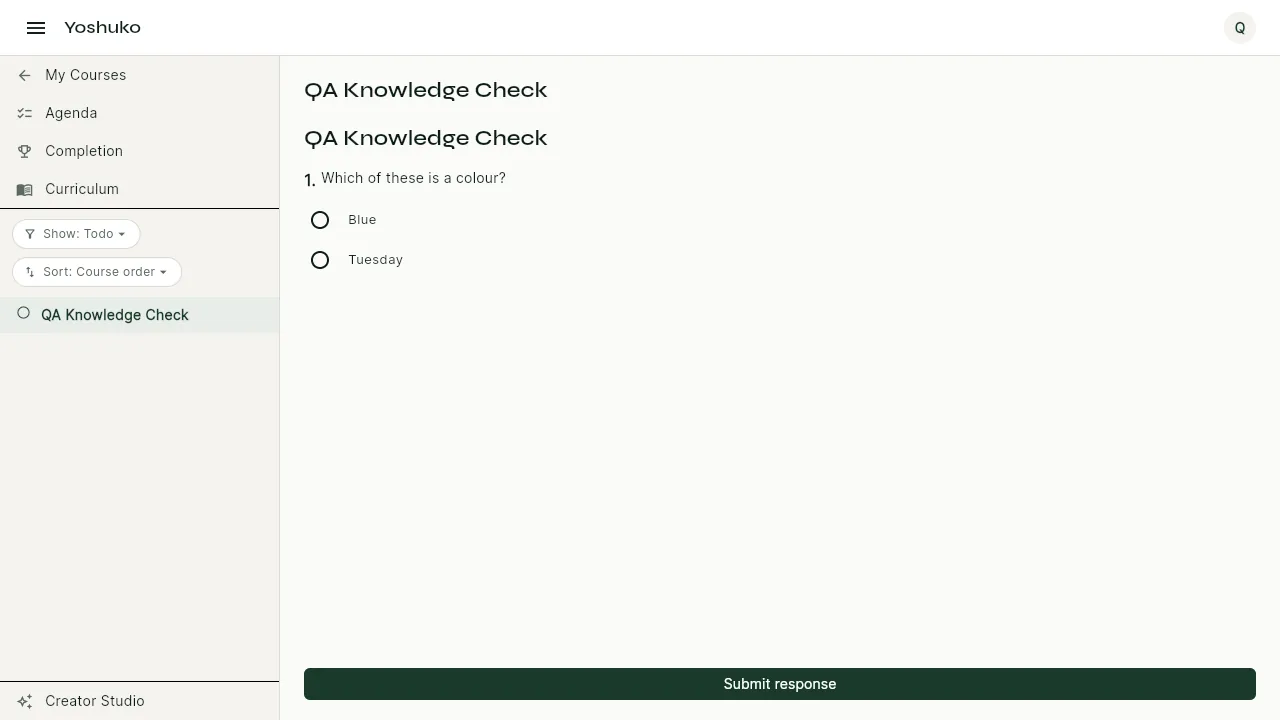
- Answer every question.
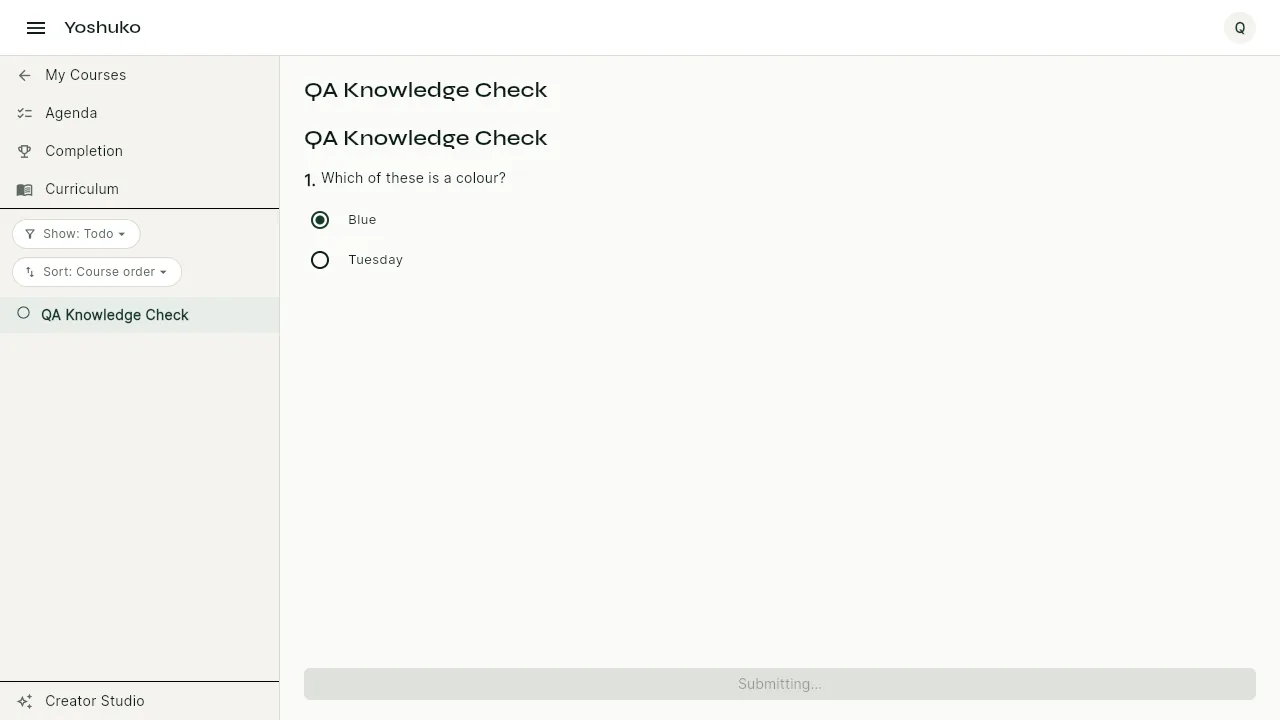
- Press Submit response.
-
A box asks Finish this attempt? and tells you how many attempts you will have left afterwards. Press Submit attempt to hand it in, or Keep working to go back.
-
You see Assessment complete with your result:
- You scored N% when the quiz can be marked automatically, or
- Your answers are with your instructor for marking. when it includes written answers that a person has to read.
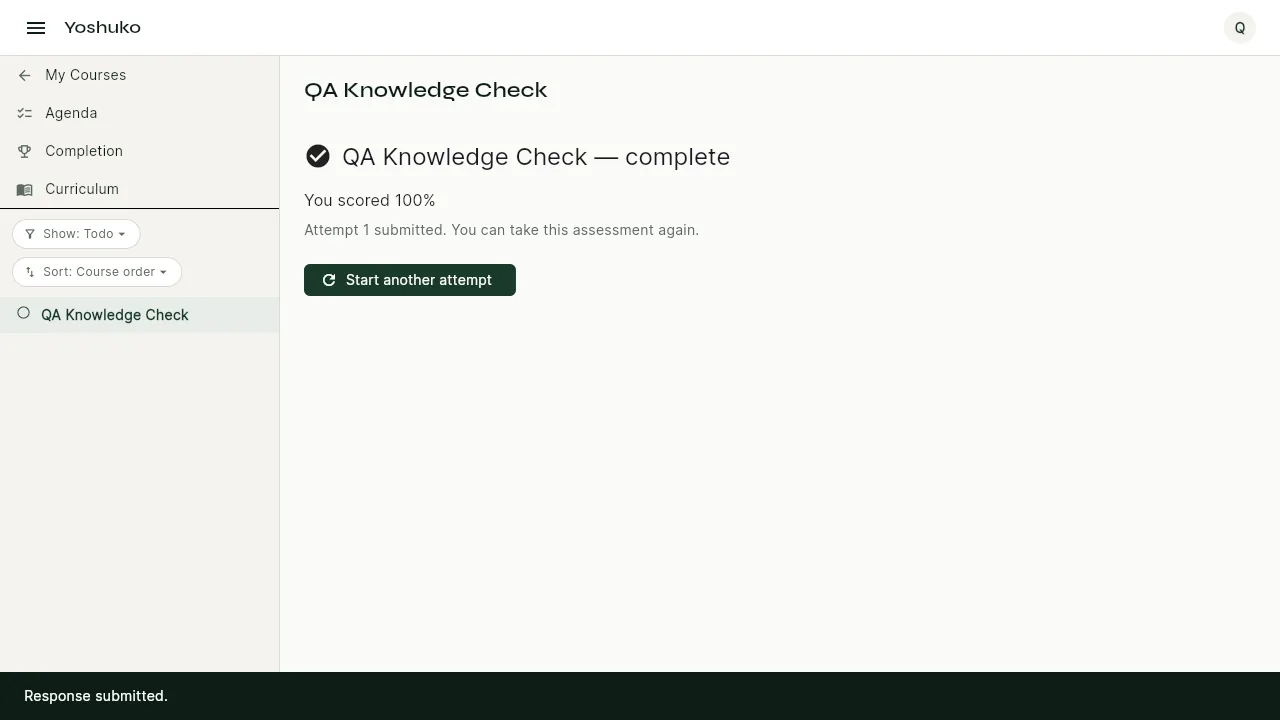
Under the result, a line tells you which attempt this was and how many you have left — for example Attempt 1 of 3 submitted. 2 attempts remaining.
Take a quiz again
If the creator allows more than one attempt, you can try again.
- Under Assessment complete, press Start another attempt.
- Answer the questions and press Submit response, then Submit attempt.
When you have more than one attempt, the panel tells you which one counts, if it is not simply your latest: Your highest scoring attempt is the one that counts. or Your lowest scoring attempt is the one that counts.
When there are none left, the panel says No attempts remaining.
Answer a written assignment
- Type your answer in the box.
- Press Submit response. You see Response submitted.
Your instructor marks it, and the mark appears on the Agenda and on your Completion page. See Take a course.
Hand in work on paper
Some questions ask you to write your answer on paper and scan it in. You see Write your answer on paper, then scan it here. Please print your letters rather than joining them up.
- Write your answer on paper.
- Press Scan your work and scan your pages.
-
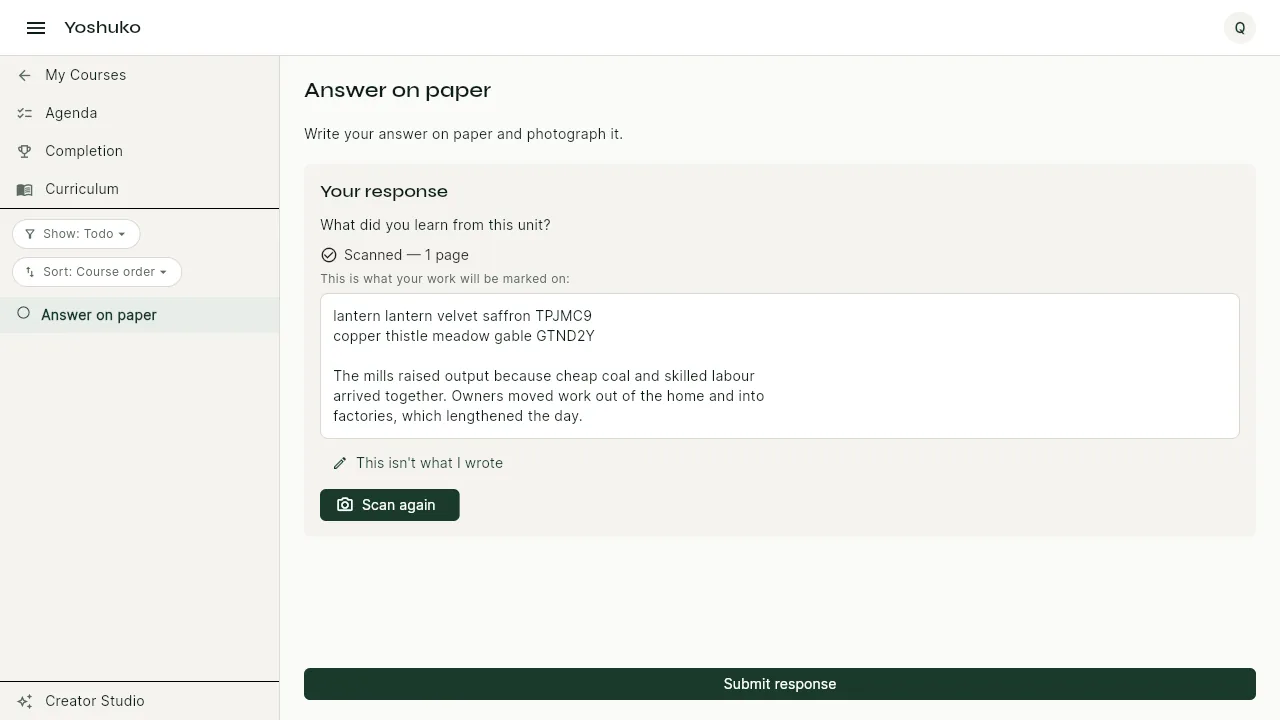
When it is done, you see Scanned — N pages and the text that was read from your pages, under This is what your work will be marked on:.
-
Check the text carefully. If anything is wrong, press This isn't what I wrote.
- Fix the text in the box and press Save correction (or Cancel).
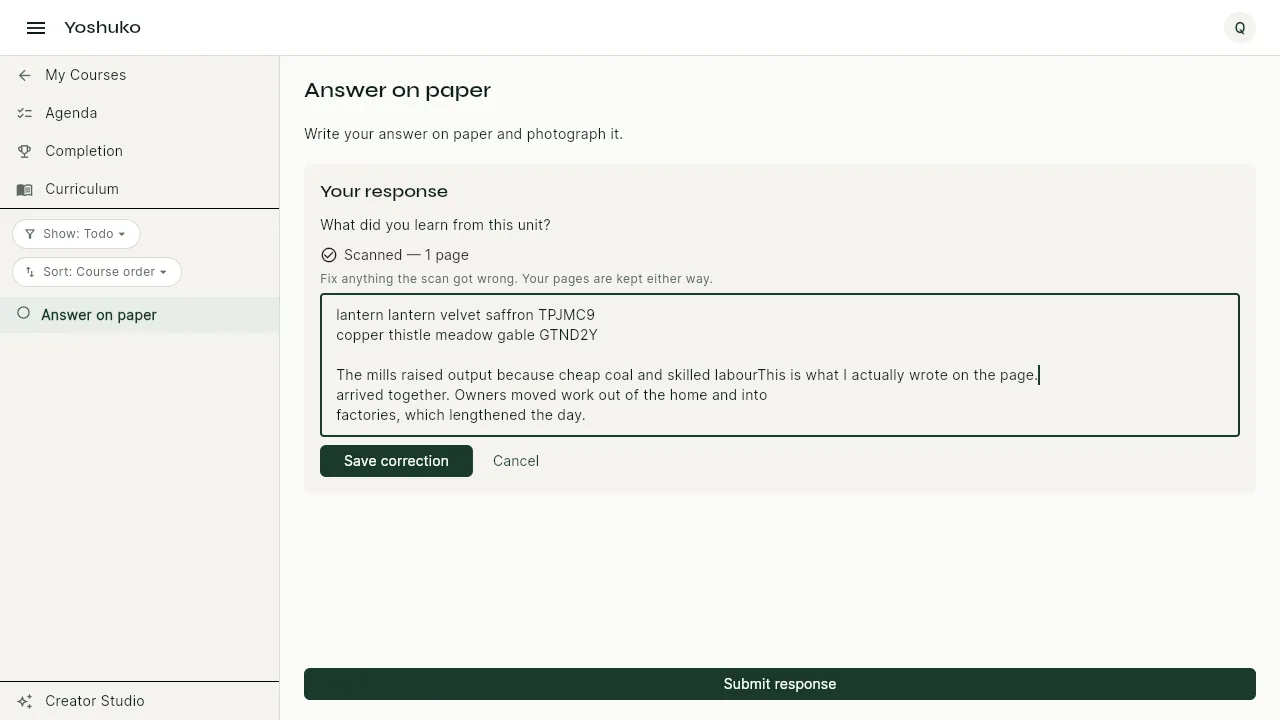
Your scanned pages are kept either way, so your instructor can see what you actually wrote. To replace your pages, press Scan again.
If something goes wrong
| You see | What it means | What to do |
|---|---|---|
| Write a response before submitting. | The answer box is empty | Type your answer, then submit. |
| You have used every attempt for this assessment. | No attempts are left | Your last kept result stands. Contact your instructor if you think this is wrong. |
| Could not submit your response. | The submission did not go through | Check your connection and press Submit response again. |
| Your pages could not be saved. Check your connection and try again. | The scan did not upload | Press Scan your work again. |
| Your correction could not be saved. | The corrected text was not stored | Try Save correction again. |