Is Yoshuko right for me?
About ten minutes of reading. The Yoshuko home page, the comparison pages and the pricing page answer most of what you need to know before you sign up — including where Yoshuko is not the better choice. No account is needed for anything on this page.
Before you start
- Anyone can read these pages; you do not need an account.
- While Yoshuko is in its public alpha, creating a course needs an access key from us. Joining a course you were invited to does not. See Ask for an invitation below.
Pick the page written for you
The home page comes in two versions. Use the strip of tabs above the headline to switch between them:
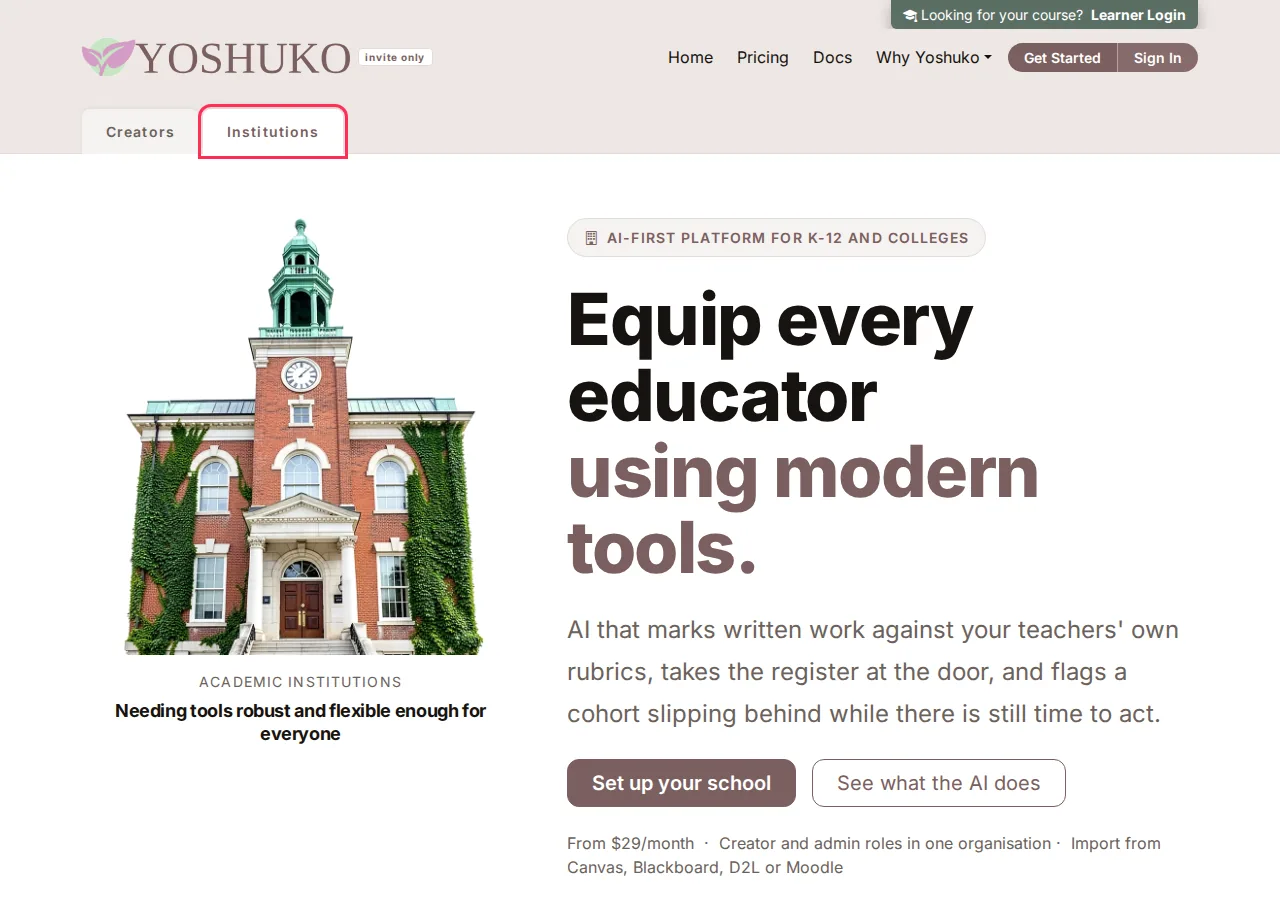
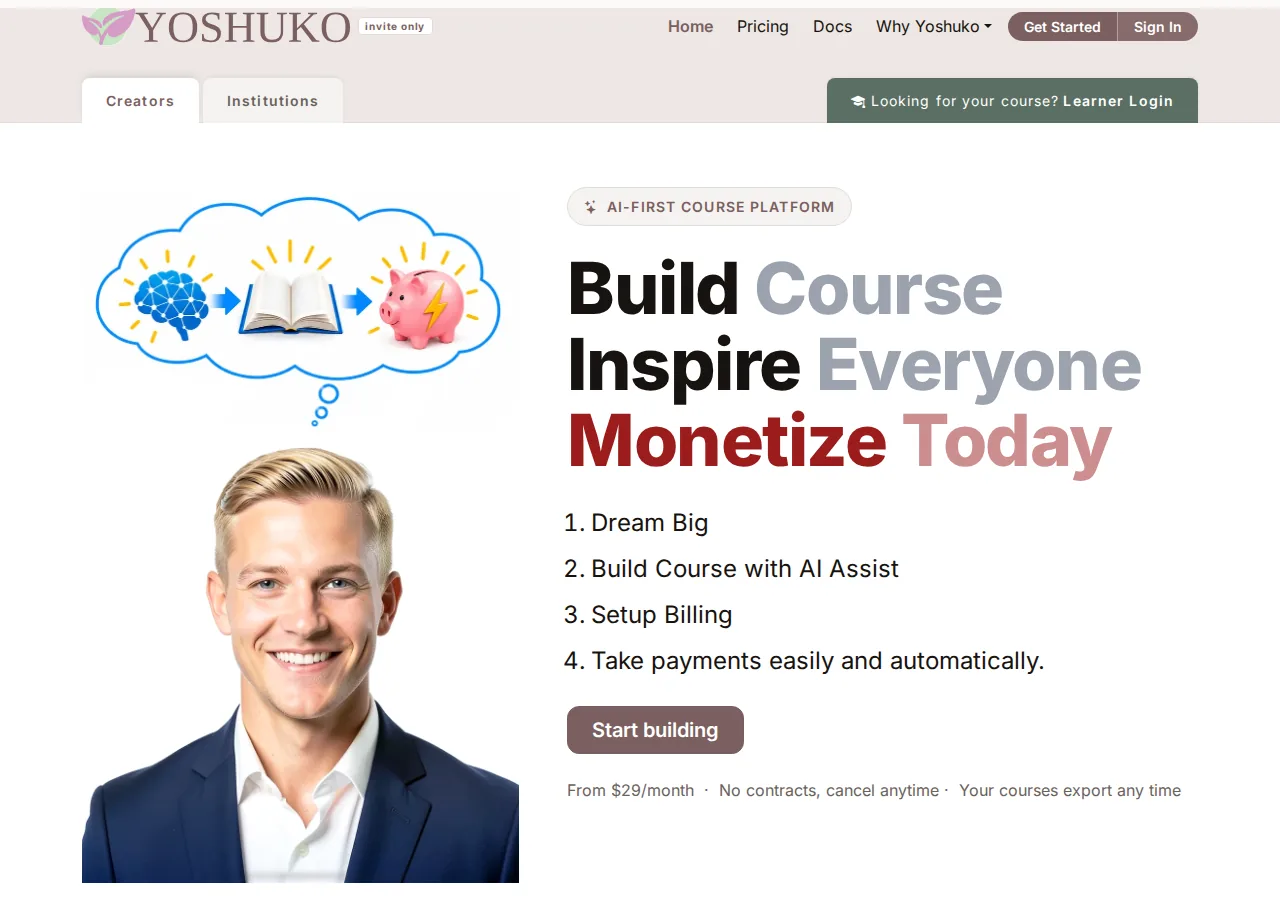
- Creators — for independent teachers building a course business. This is the page you land on by default.
- Institutions — for schools, districts and colleges choosing a system for a department.
They are genuinely different pages, with different arguments, comparisons and first steps. You can switch back and forth as often as you like.
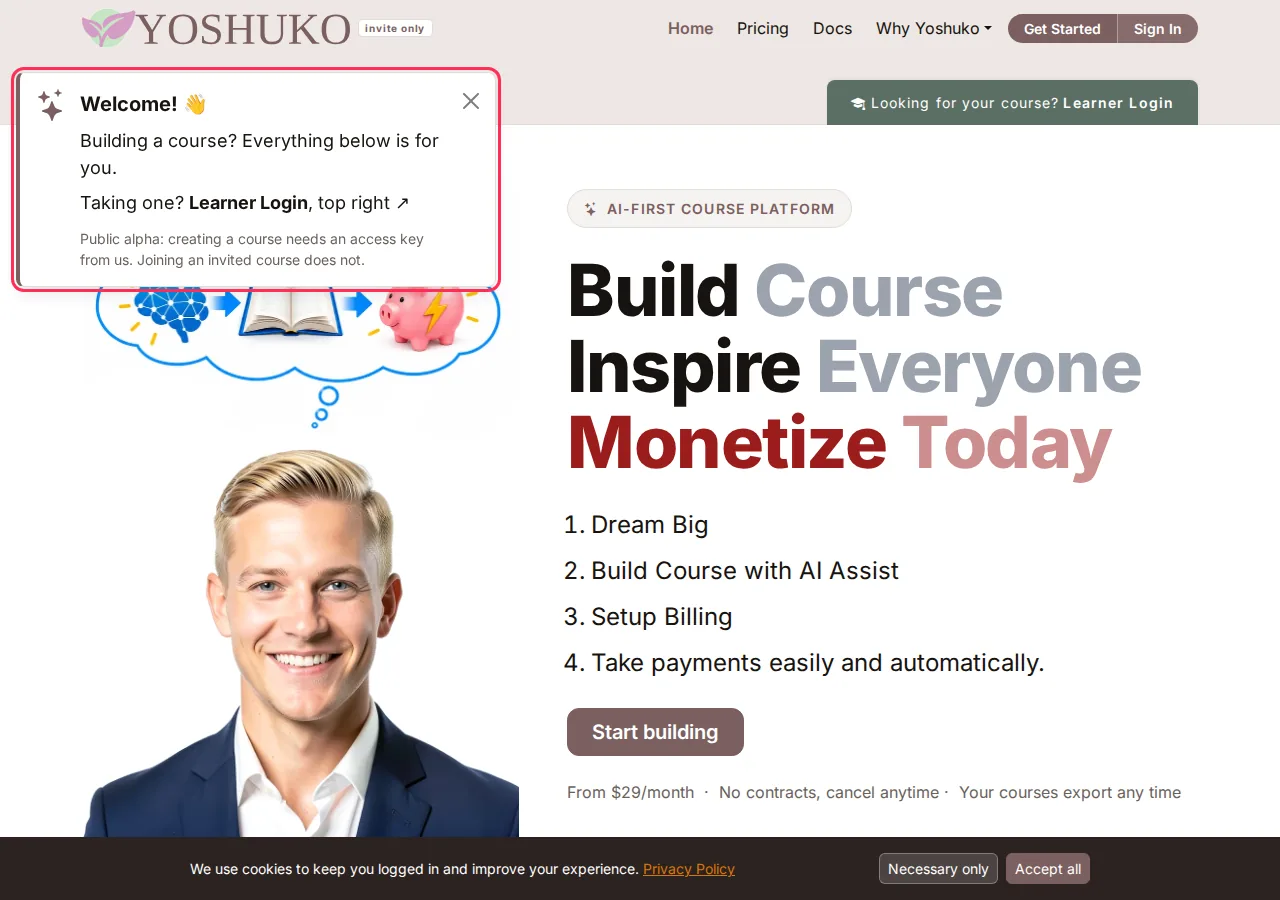
The first time you visit, a short Welcome! card appears. It points course builders at the page below it and learners at Learner Login. Close it with its × button whenever you like.
See what the AI actually does
Scroll to the AI section of the home page (the See what the AI does button jumps straight to it). On the Creators page it is headed AI across your whole course business and describes three jobs:
- It marks the work — written answers marked against your own rubric; every grade stays yours to change.
- It shows you what sells — where learners drop off, which lesson loses them and what converts, read from your own numbers.
- It watches for work that is not theirs — AI-written and copied answers flagged as they are marked, at a threshold you set.
The Institutions page makes the same case for a department: marking against each teacher's rubric, taking the register by scanning QR badges as a class arrives, and flagging students you are about to lose.
Further down, Ten minutes from now you will have lists what a creator ends up with after the first session: a course outline with a first lesson, a quiz the AI marks with a rubric it drafted, and a page you can send to your first paying learner. Start building under that list takes you to sign-up.
Compare Yoshuko with what you use now
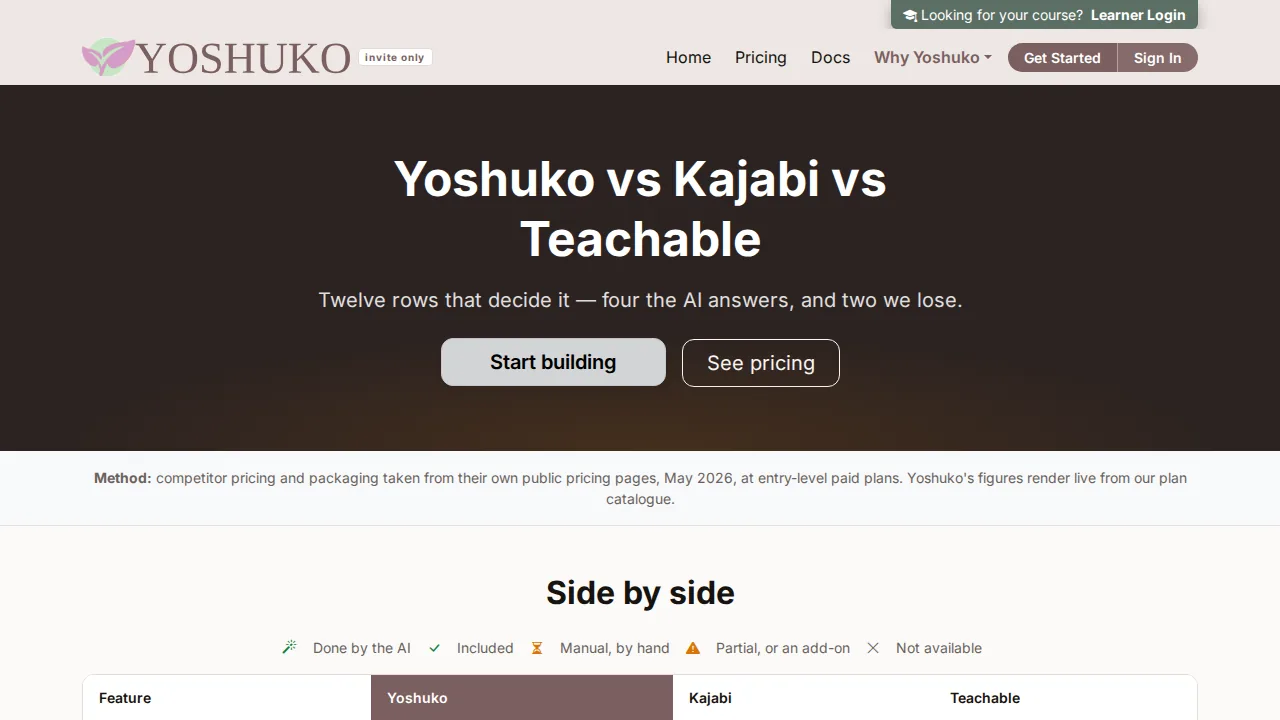
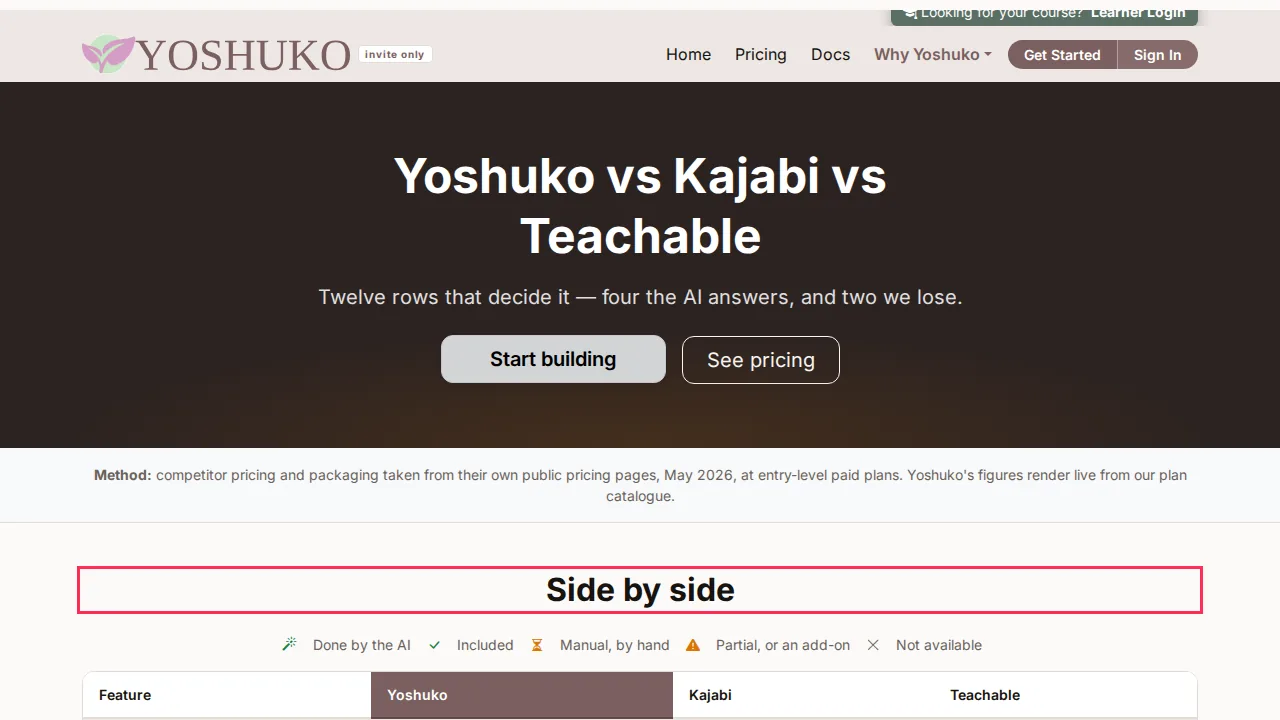
If you are a creator: press Compare Yoshuko, Kajabi and Teachable on the home page. The comparison page sets twelve rows side by side — including the two where Yoshuko loses — and states when and where the competitors' prices were taken from.
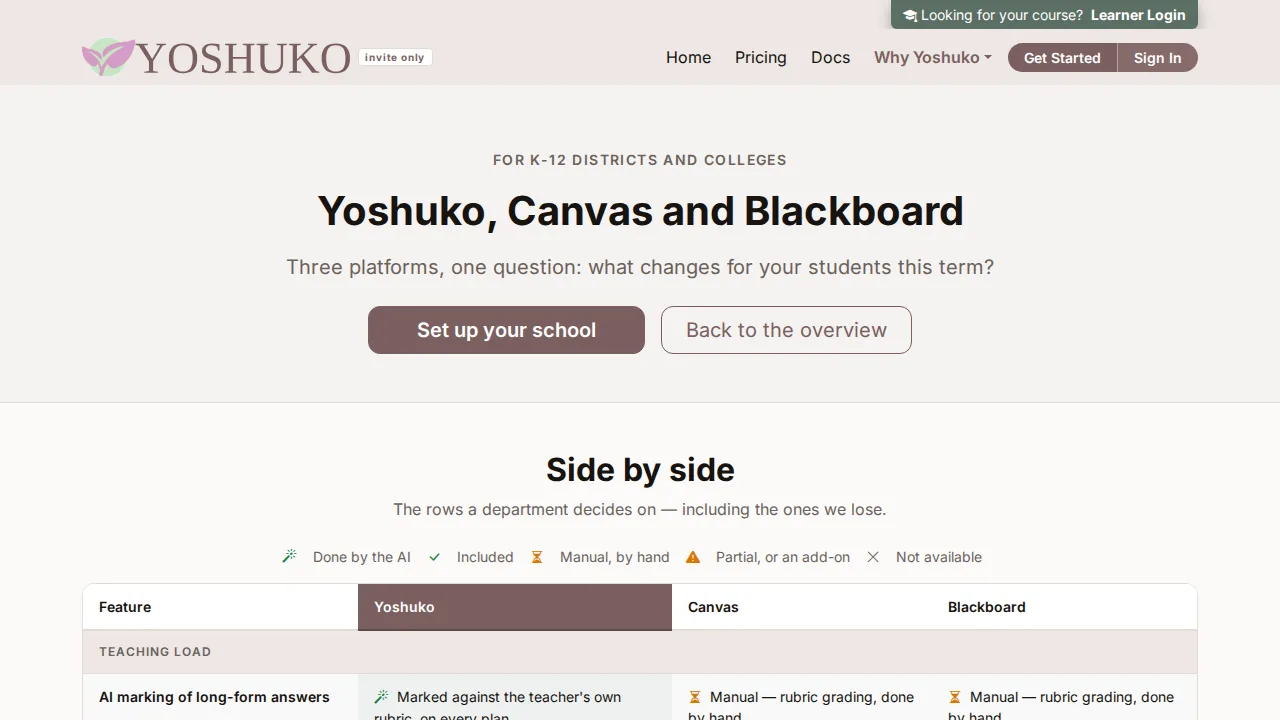
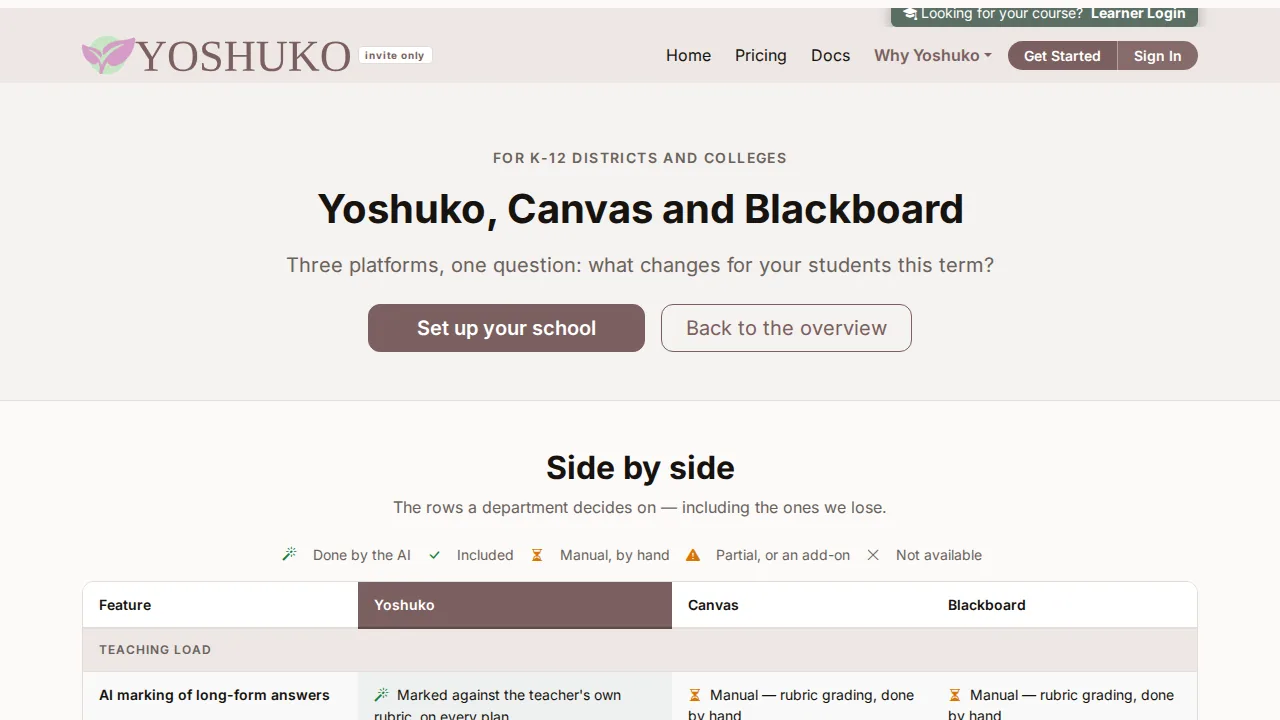
If you run a department: open the Institutions tab and press See the case against Canvas and Blackboard. That page has a side-by-side table, a section called Where Canvas and Blackboard are still ahead, and Start with one department — a way to trial Yoshuko with one course and one term rather than a full switch-over.
Check the price
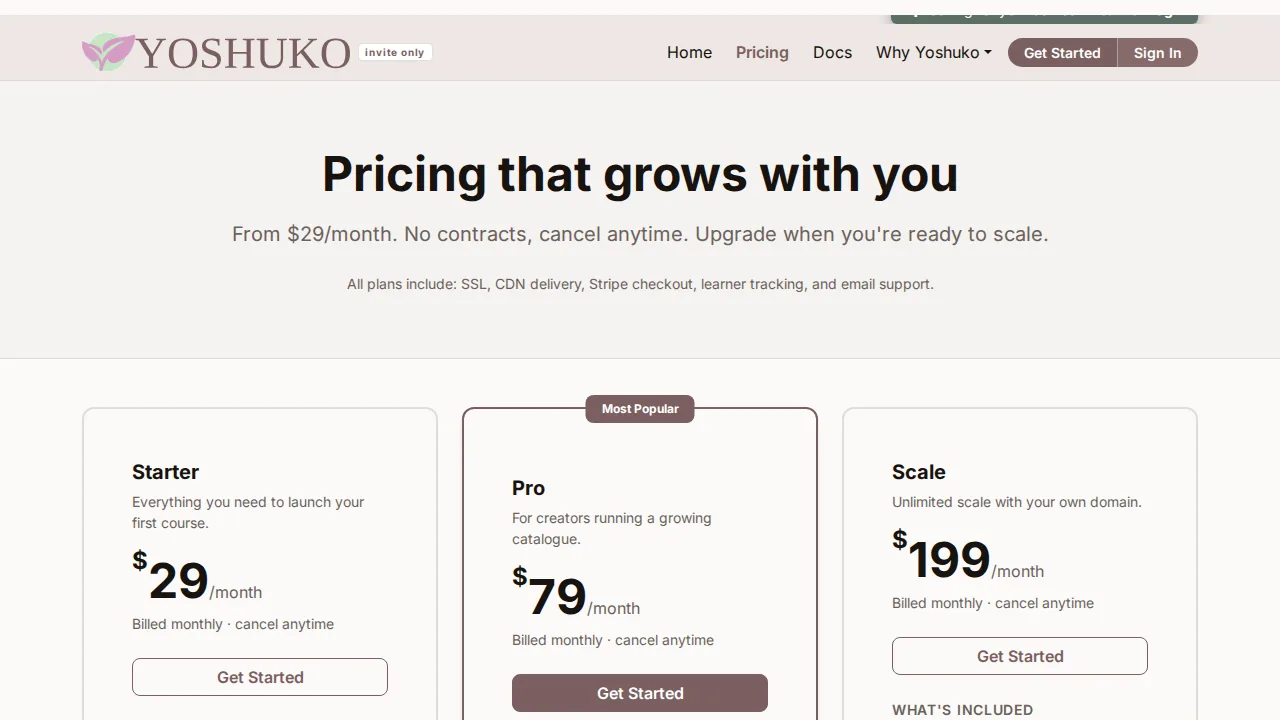
The home page shows each plan's name and tagline under Simple, transparent pricing. For the full picture, press Pricing in the top menu, or Compare plans and pricing on the home page.
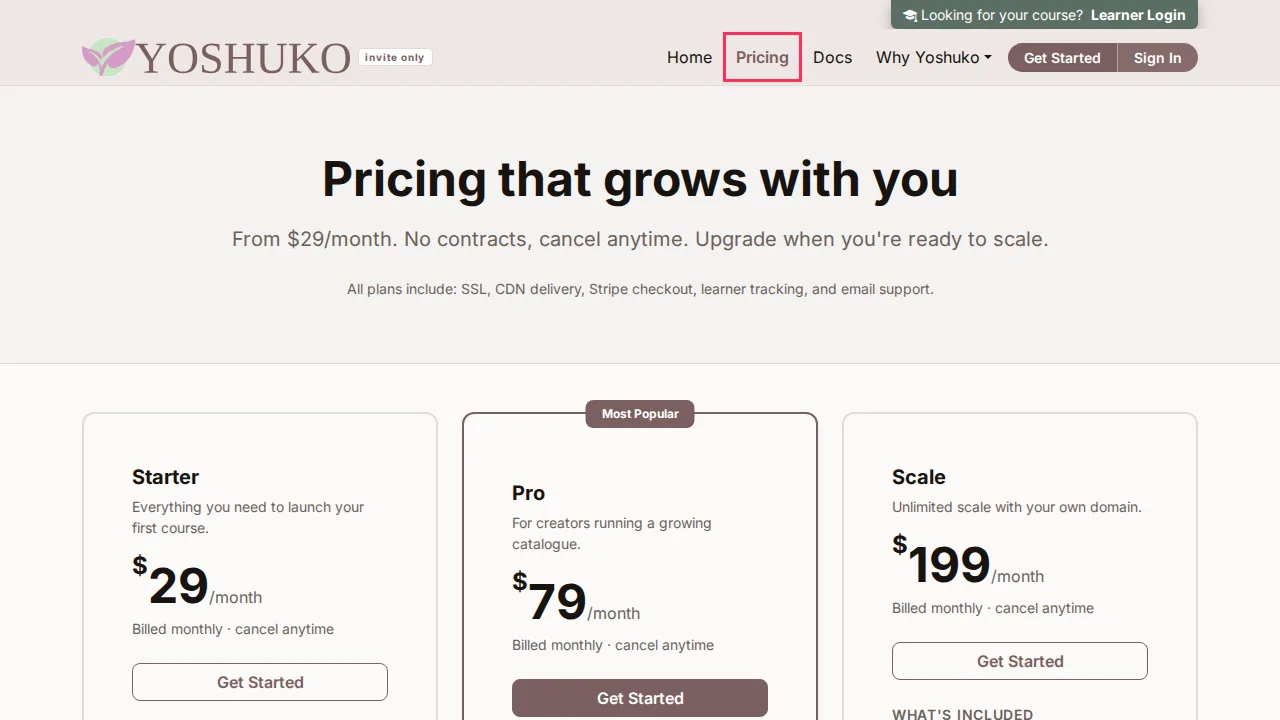
The pricing page shows every plan's monthly price, what it includes, and a Full feature comparison table. Plans are billed monthly and you can cancel at any time. Press Get Started on a plan to go to sign-up with that plan already chosen — you create your account first and pay at checkout. Current prices are always on the pricing page.
Ask for an invitation
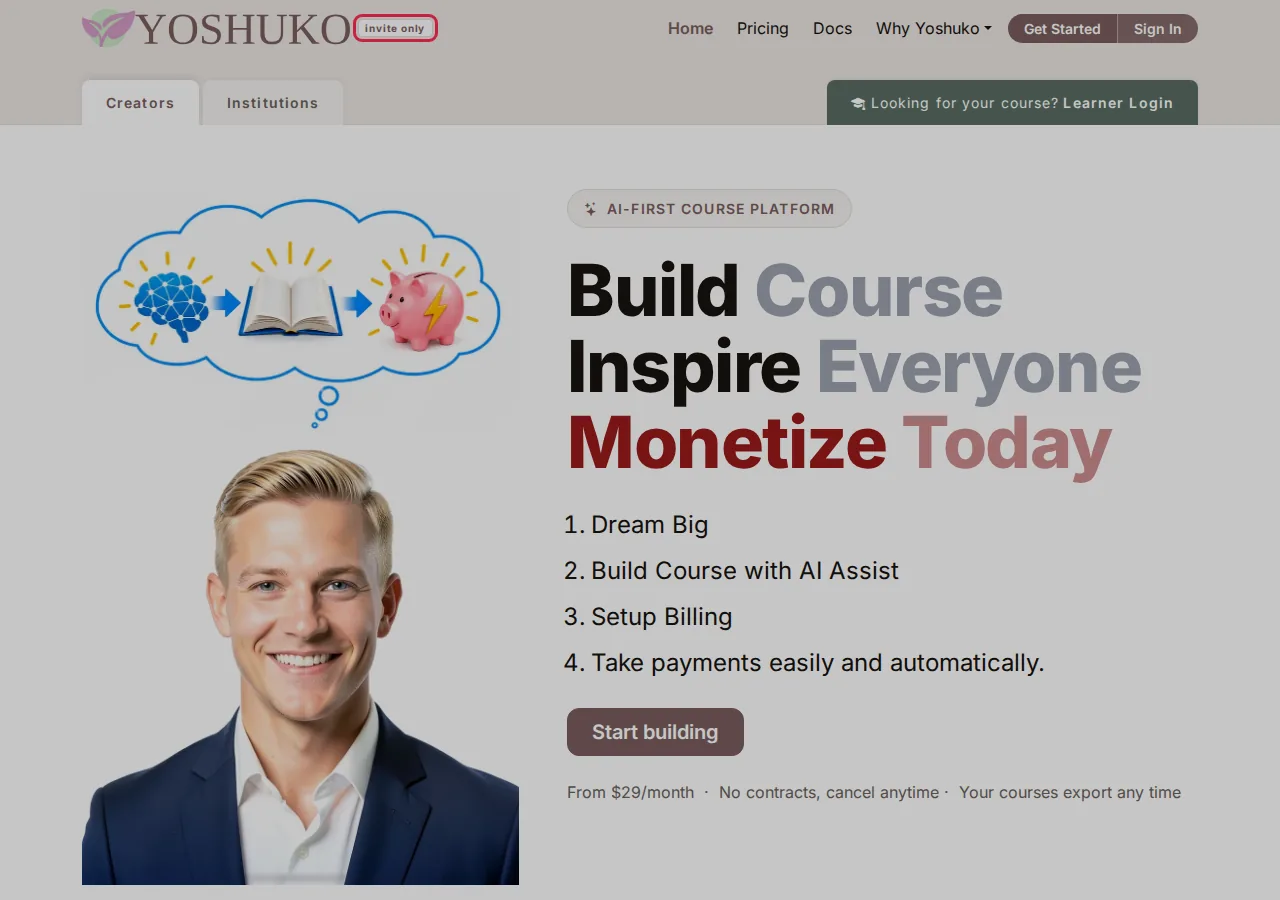
While the alpha is running, the Yoshuko wordmark carries an invite only badge. Press it to open the Invite Only notice, then press Request an invitation. You can also go to sign-up and press Request an invitation under the access key field.
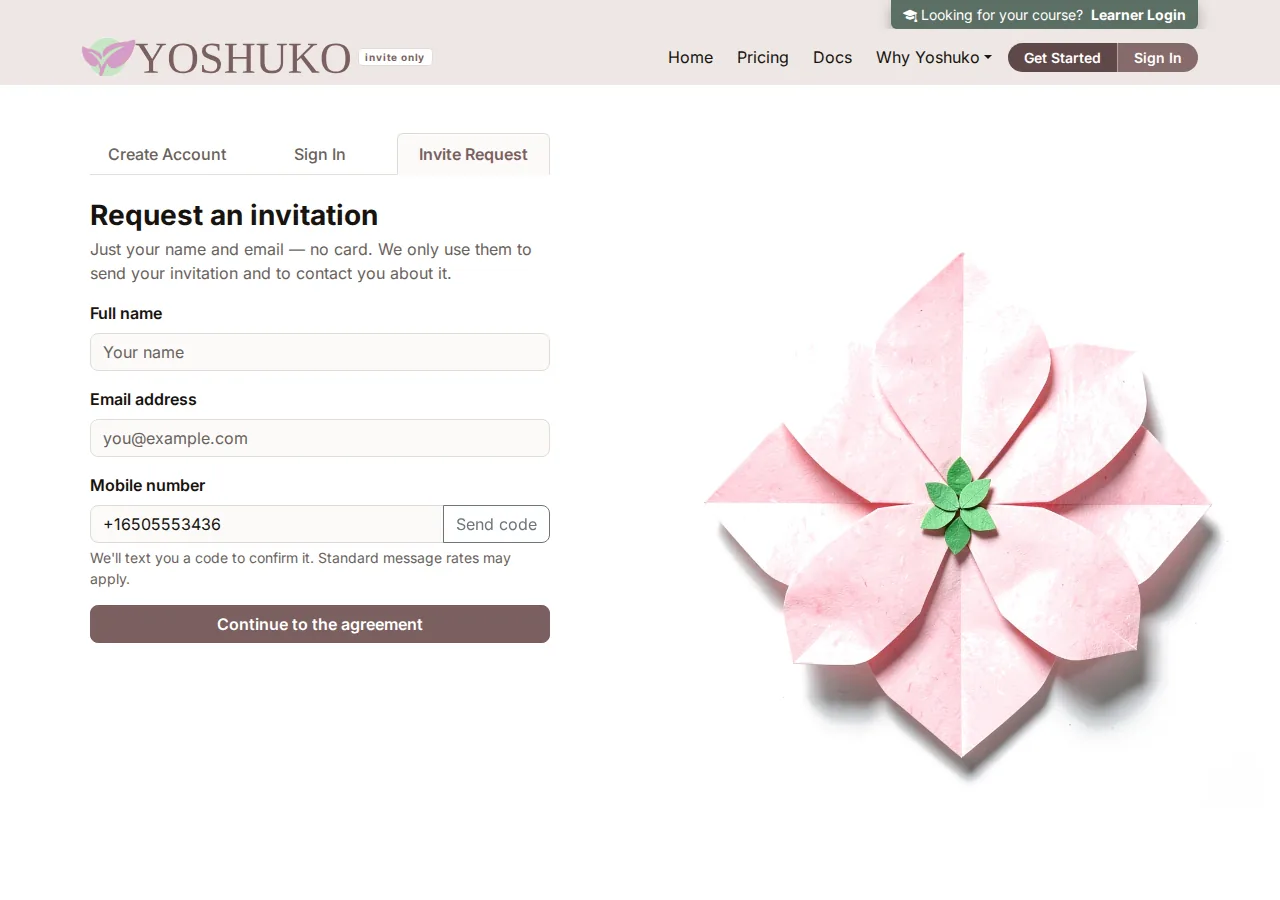
- On the Invite Request tab, enter your Full name and Email address. You can also add your Organisation, your Role and What would you like to do with it? — these are optional. No card is needed.
-
Press Continue to the agreement.
-
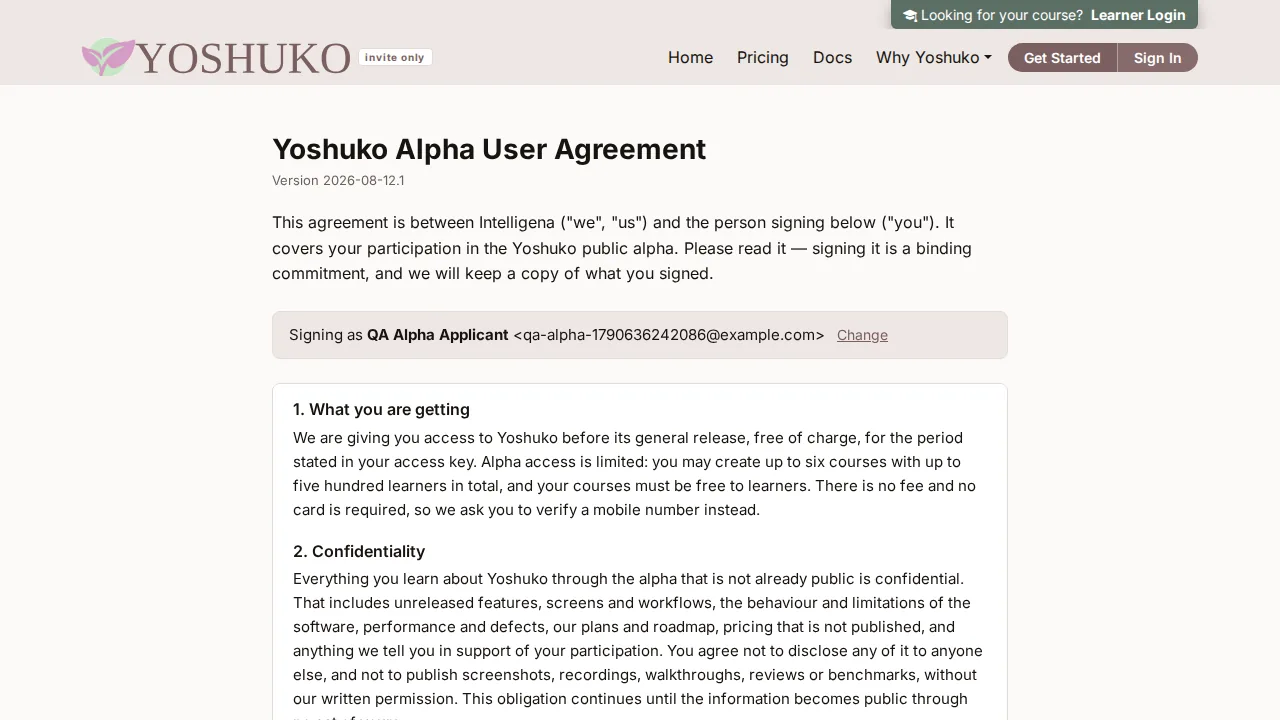
Read the Yoshuko Alpha User Agreement. Type Your full legal name, then sign in the box with your mouse, trackpad or finger (Clear signature starts again).
- Tick the box that says you have read the agreement and that the signature is yours.
-
Press Sign and send my request.
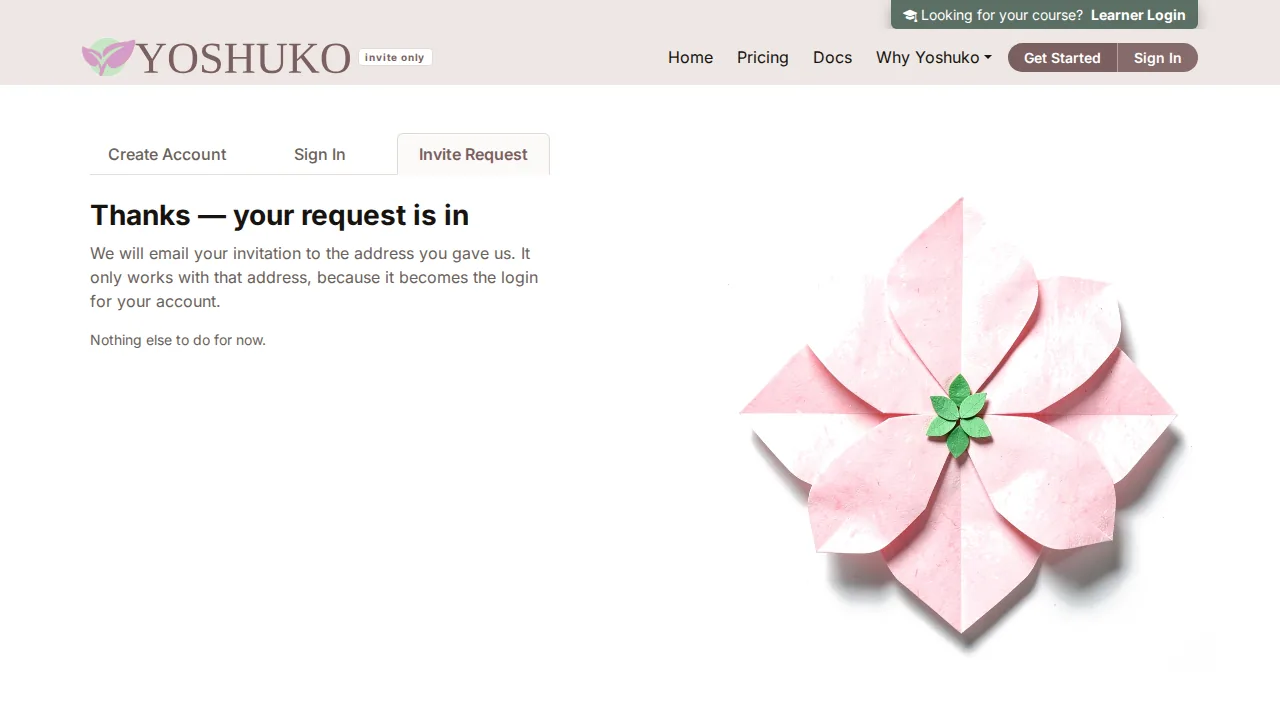
You will see Thanks — your request is in. We keep a PDF copy of what you signed and send it with your request. Your invitation arrives by email, and it only works with the address you gave — that address becomes your login.
Already have an access key?
Enter it in the Alpha Access Key field on the Create Account tab and press Continue — the rest of the form opens. The full walk-through is in Create your account.
Find your way around the sign-up page
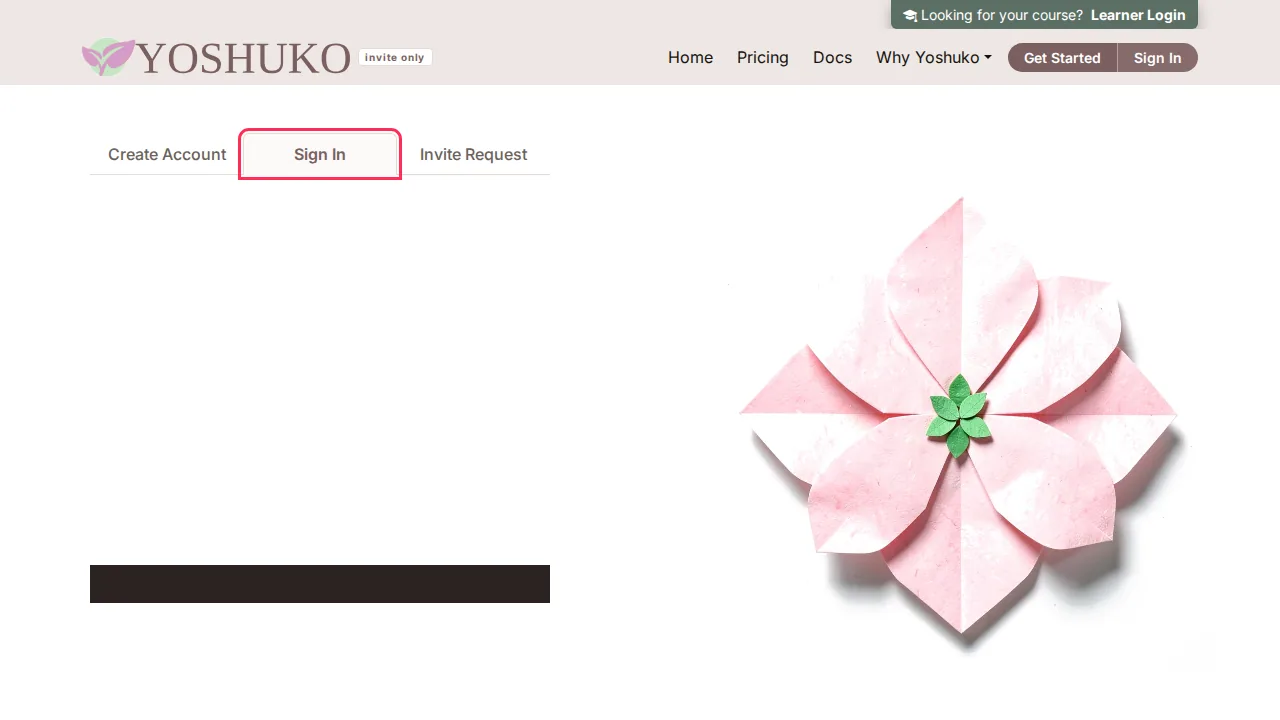
The sign-up page has up to three tabs, and you can move between them freely:
| Tab | Use it to… |
|---|---|
| Create Account | start a new creator account |
| Sign In | sign in to an account you already have |
| Invite Request | ask for an alpha invitation (shown only while the alpha is running) |
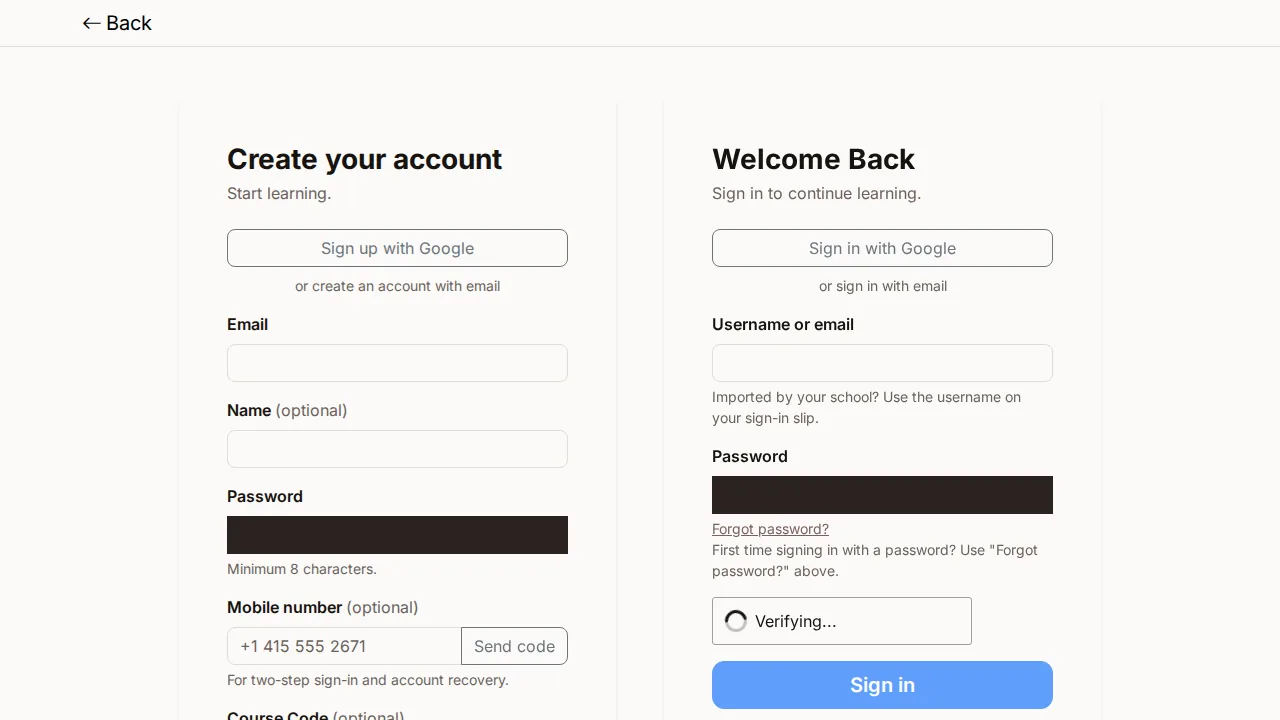
Links under each form do the same job: Sign in under Already have an account?, and Create one under Don't have an account?
Institutions reach the same page from Set up your school; creators from Start building.
Looking for a course you are taking?
If you are a learner and ended up on the Yoshuko home page by mistake, press Learner Login at the top right (on a wide screen it reads Looking for your course? Learner Login). It is on both the Creators and the Institutions page and takes you straight to the learner sign-in.
Get help without asking anyone
Press Help in the page footer to open the Help centre. Pick an article to read it; the Help centre link at the top of each article takes you back to the list.
If something goes wrong
| You see | What it means | What to do |
|---|---|---|
| Signing up needs an access key on the Create Account tab | The alpha is running and you have no key yet | Press Request an invitation in that message, or use the Invite Request tab |
| No invite only badge and no Invite Request tab | The alpha is not running on this site | Sign up directly — no key is needed |
| Your access key is refused | Keys only work with the email address they were issued to | Sign up with the address the invitation was sent to |