Sign in to Yoshuko
Sign in with your email address and password, or with Google or Apple if you used one of them to create your account. Creators are then asked to confirm it's them with a short code. It takes about a minute.
Before you start
- You need a Yoshuko account. If you don't have one yet, see create an account.
- Creators: have your email inbox to hand, or your authenticator app if you turned one on. The code step comes straight after your password.
Sign in as a creator
-
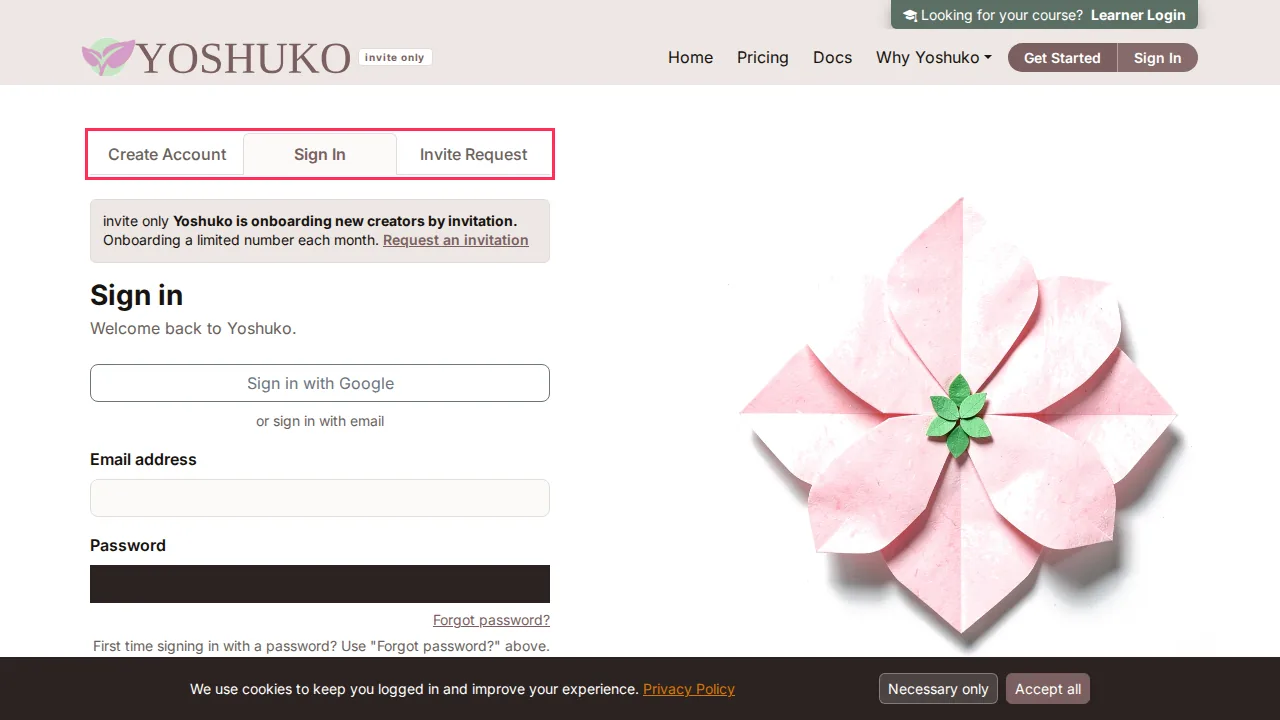
Go to the sign-in page and choose the Sign In tab.
-
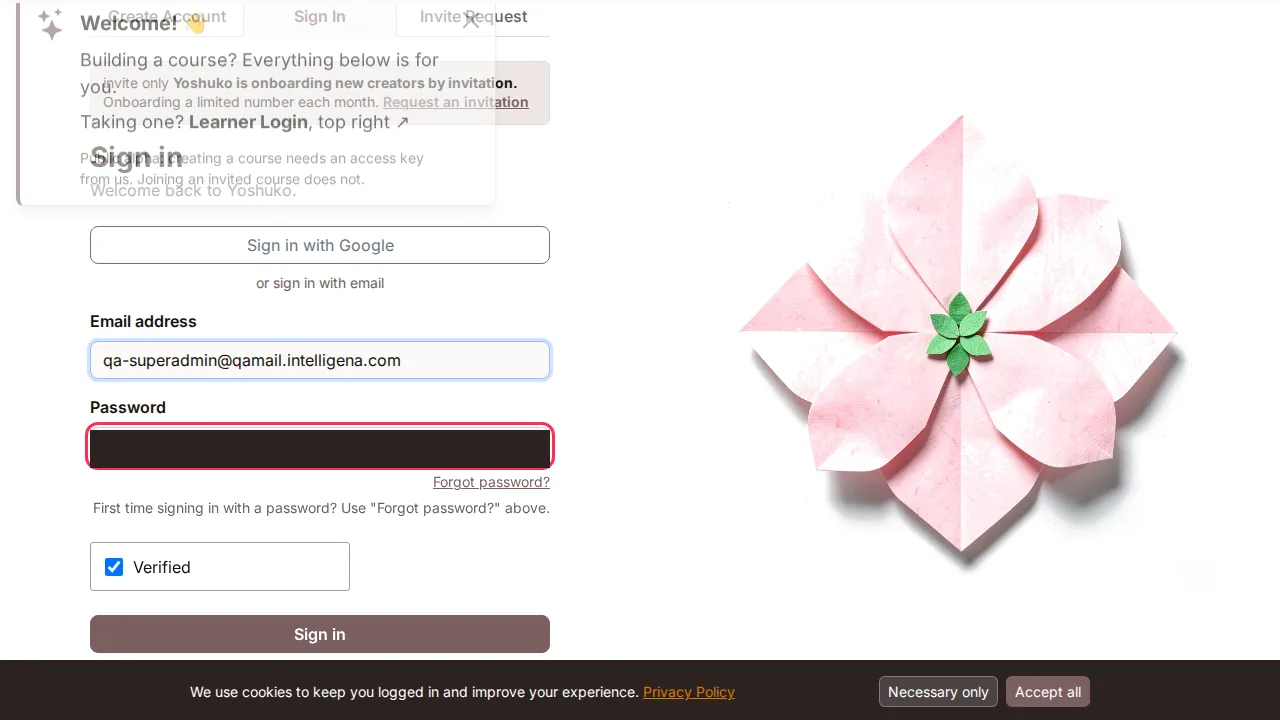
Enter your Email address and Password.
-
Wait a moment while a short automatic security check runs, then press Sign in. The button stays greyed out until that check has finished.
-
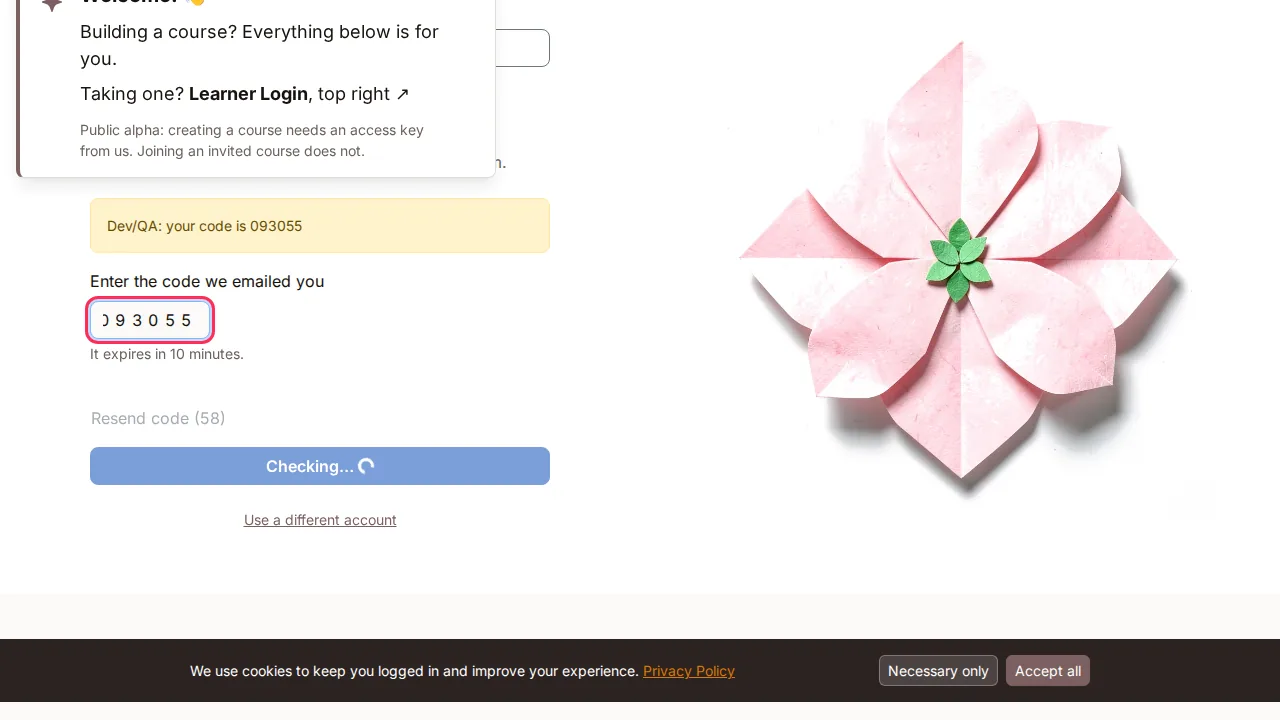
On Confirm it's you, enter the code we emailed you. The page shows a shortened version of the address it went to, so you know which inbox to look in. The code expires in 10 minutes.
-
Press Verify and sign in. You land in the creator studio.
If the email hasn't arrived, press Resend code — it becomes available after a short wait. Sending a new code cancels the old one, so always use the newest email.
Who is asked for a code
Anyone who belongs to an organisation is always asked for a second step when they sign in, because they look after an organisation's courses and its plan. If you have turned on an authenticator app (see security and passwords), you are asked for a code from that app instead of an emailed code.
Sign in with an authenticator app
If you have set up two-factor authentication with an authenticator app:
- Sign in with your Email address and Password as above.
- On Confirm it's you, open your authenticator app and type the current code into Code from your authenticator app.
- Press Verify and sign in.
There is no resend button here: your app shows a fresh code on its own.
Sign in with a backup code
Use this if you don't have your authenticator device with you.
- Sign in with your Email address and Password.
- On Confirm it's you, press Use a backup code instead.
- Enter one of the backup codes you saved when you set up two-factor authentication into Backup code.
- Press Verify and sign in.
Each backup code works once. After you use one, cross it off — it will be refused next time. To switch back to your app, press Use my authenticator app instead.
Running low on backup codes?
You can get a fresh set at any time. See security and passwords.
Sign in with Google or Apple
- On the Sign In tab, press Sign in with Google (or Sign in with Apple).
- Choose your account on Google's or Apple's page.
- You come back to Yoshuko signed in.
These buttons only appear when that option is available on Yoshuko. Below them, the page says or sign in with email — you can always use your email and password instead.
You used Google or Apple before, but now want a password
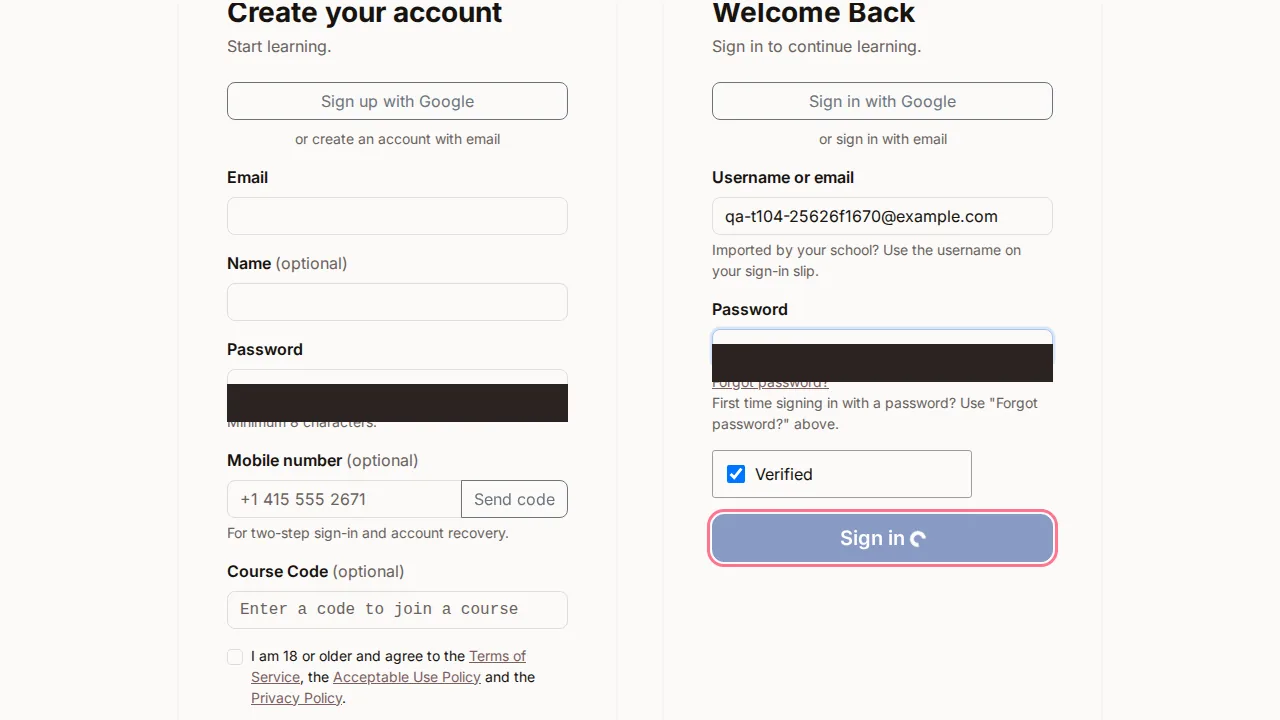
Use Forgot password? on the sign-in page to set one. The page reminds you: First time signing in with a password? Use "Forgot password?" above.
Sign in as a learner
If you are taking a course, you can sign in from the learner sign-in page — for example when you follow a link to a course.
-
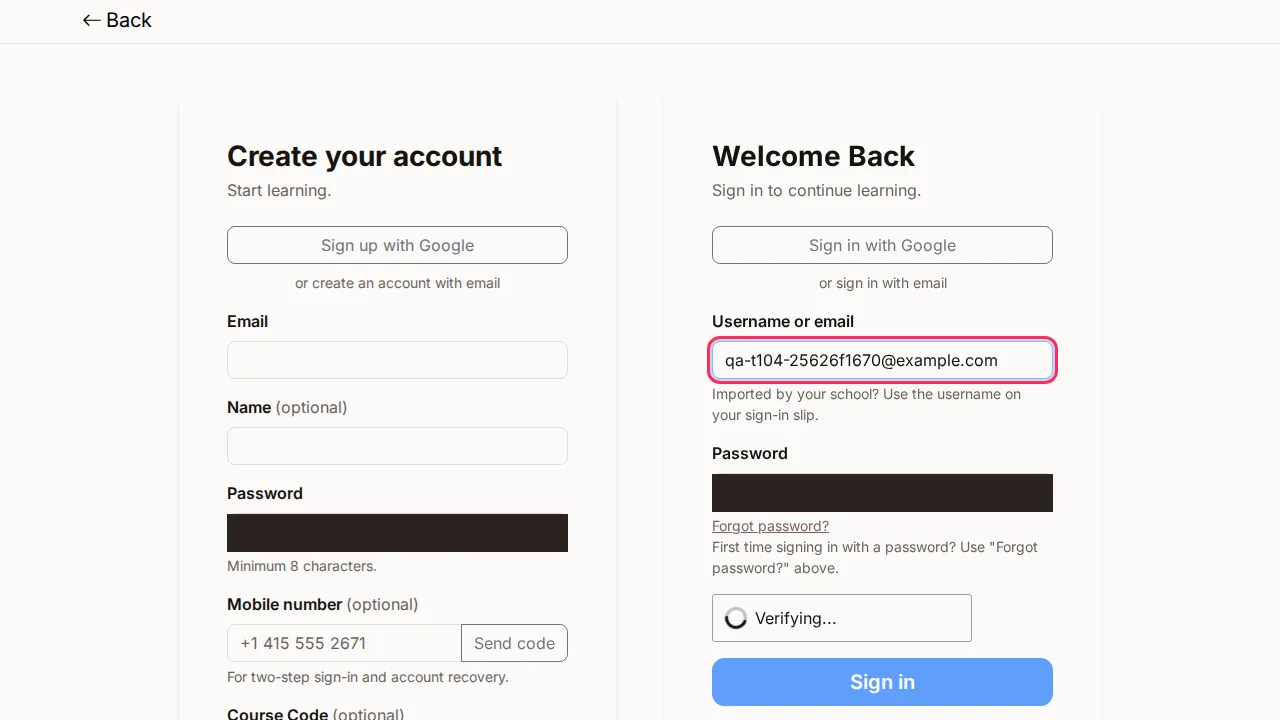
On Welcome Back, enter your Username or email and Password.
-
Press Sign in once it becomes available.
-
You land on your learner dashboard with your courses.
If your account asks for a second step, you see the same Confirm it's you screen as creators do, and it works the same way.
If something goes wrong
| You see | What it means | What to do |
|---|---|---|
| Please verify your email before signing in. | You haven't confirmed your email address yet. | Press Resend verification email, open the email and follow its link, then sign in again. |
| That code is not correct or has expired. | The code was mistyped, already used, or more than 10 minutes old. | Check the newest email and try again, or press Resend code. |
| We could not send that email. Press Resend to try again. | The code email did not go out. | Press Resend code. If it keeps happening, contact help. |
| Please wait before requesting another code. | You asked for a new code very recently. | Wait a moment, then press Resend code again. |
| That sign-in attempt has expired. Please sign in again. | You took too long on the code step. | Enter your email and password again. |
| A backup code is refused | Each backup code works only once. | Use a different, unused code. |
| You signed in to the wrong account | — | On Confirm it's you, press Use a different account. |
| You've forgotten your password | — | Press Forgot password? See security and passwords. |
Related
- Security and passwords — reset a password, add a mobile number, turn on an authenticator app
- Create an account
- Your account