Certificates
Yoshuko can award a downloadable PDF certificate, signed with your name, whenever a learner completes one of your courses. Every certificate carries a number and a verification address, so anyone can check it is genuine. Turning it on takes about two minutes.
Before you start
- You need to be a creator on the course.
Turn on certificates for a course
- Open the course and, in the course menu under Learners, choose Completion.
- Press Setup.
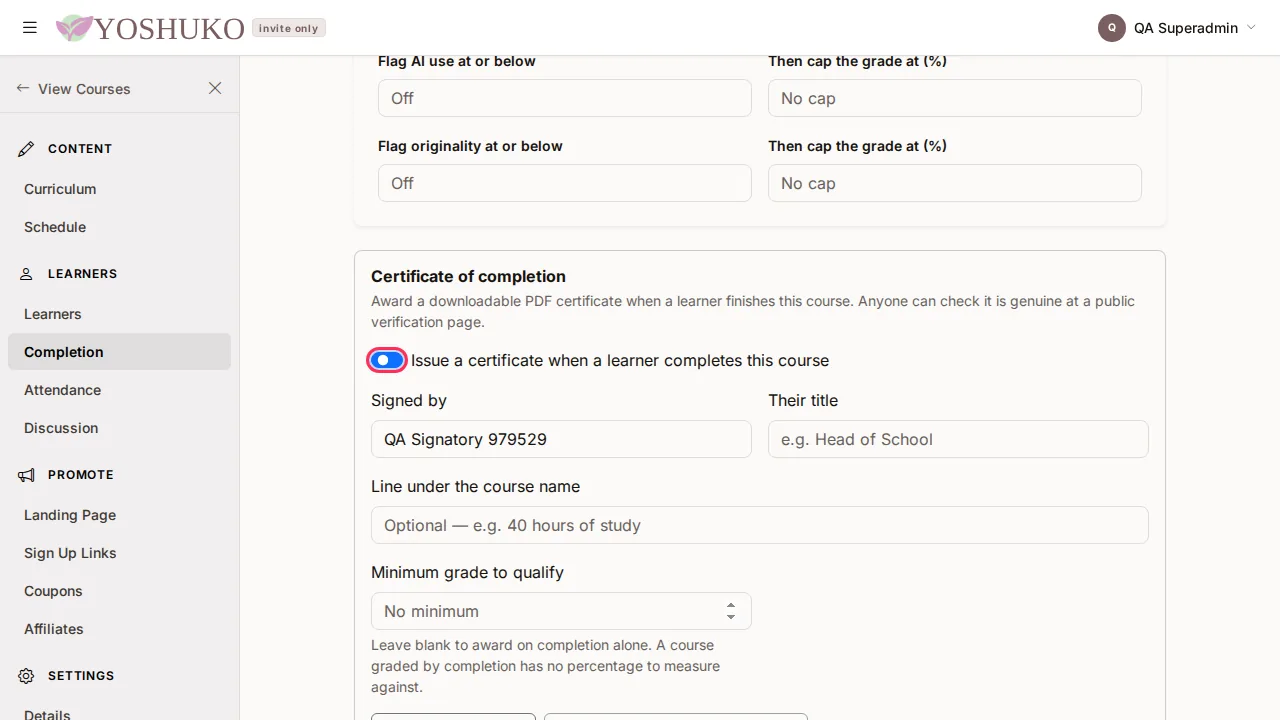
- In the Certificate of completion card, switch on Issue a certificate when a learner completes this course. The certificate settings appear.
- Fill in:
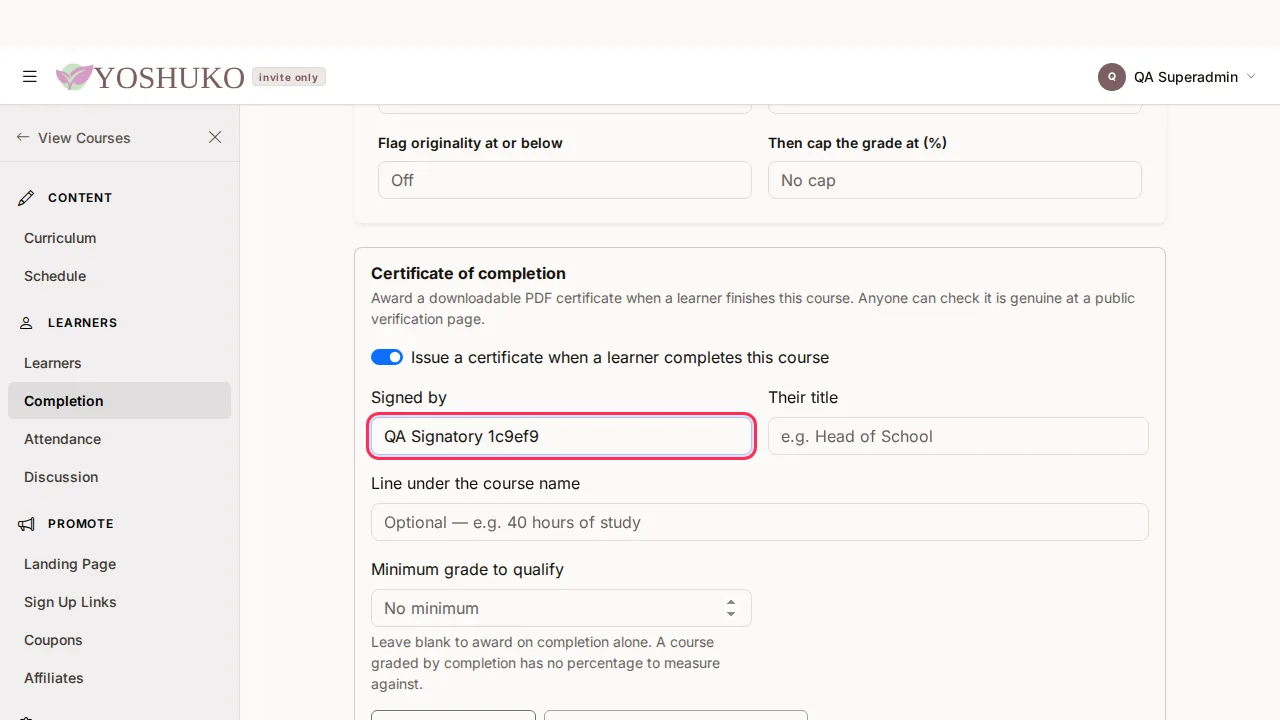
- Signed by — the name printed on every certificate this course awards.
- Their title — for example Head of School.
- Line under the course name — optional, for example 40 hours of study.
- Minimum grade to qualify — a percentage from 0 to 100. Leave it blank to award on completion alone. A course graded by completion has no percentage to measure against.
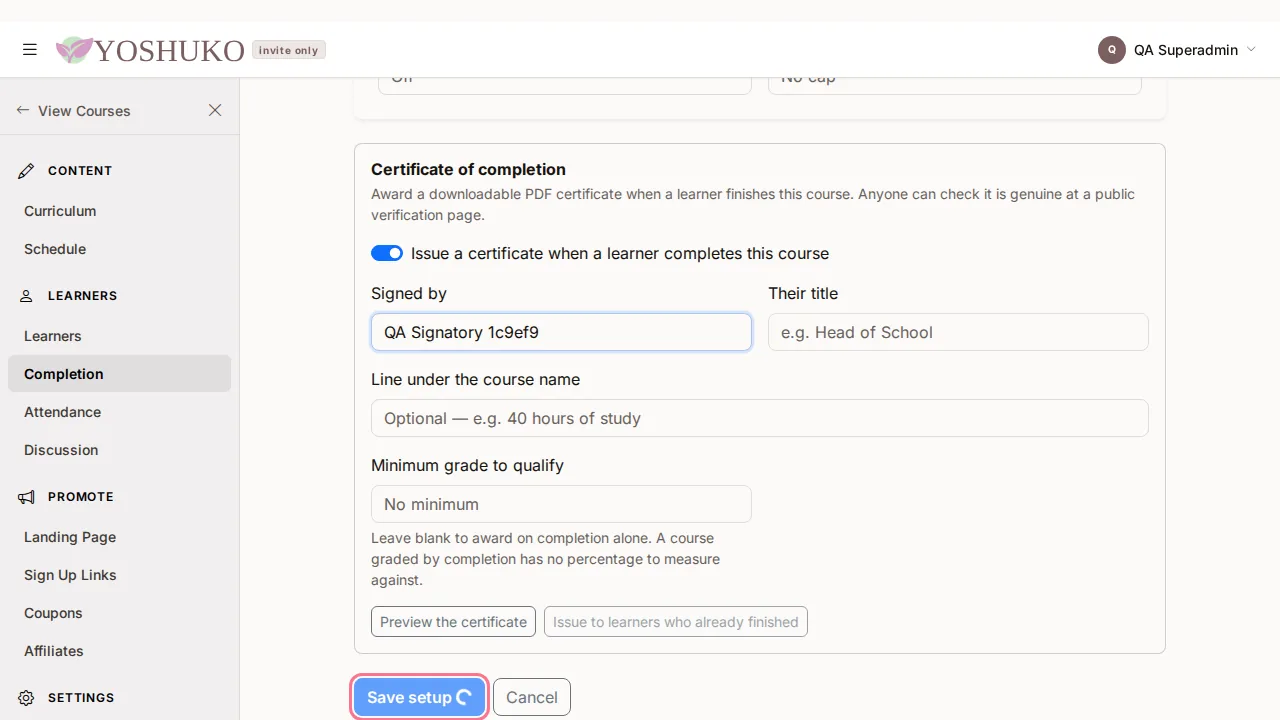
- Press Save setup.
Preview it, and catch up learners who already finished
- Preview the certificate downloads a sample PDF so you can check how it looks.
- Issue to learners who already finished awards the certificate to learners who completed the course before you turned certificates on.
What a certificate shows
The PDF names the learner, the course, your organisation and the date it was issued, with the signatory you chose. Its footer carries the Certificate no. and a Verify at address.
Check that a certificate is genuine
Anyone can do this — no account is needed.
- Open the Verify at address printed on the certificate.
- Read the result:
- This certificate is genuine — the page shows who it was awarded to, the course, who issued it (Issued by), the date (Issued on) and the Certificate no. Compare these with the certificate you were shown.
- This certificate has been withdrawn — it was issued, then withdrawn. The page shows who it was originally issued to and the Withdrawn on date.
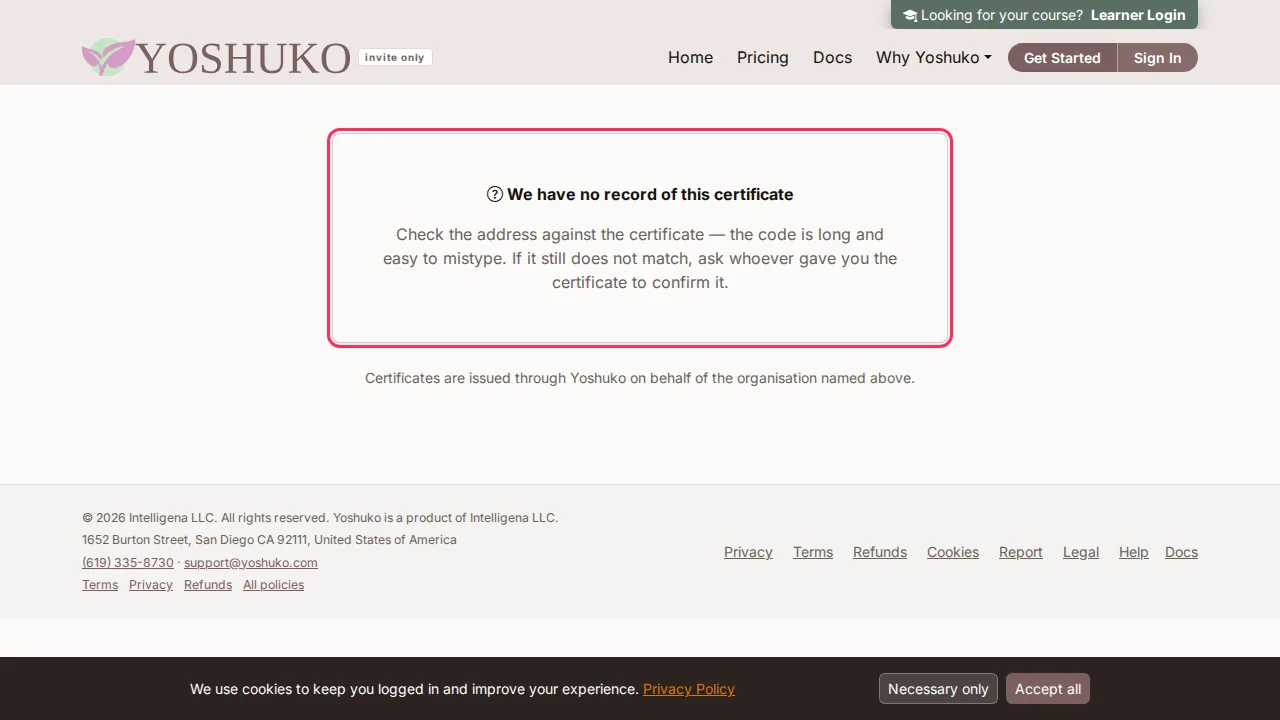
- We have no record of this certificate — see below.
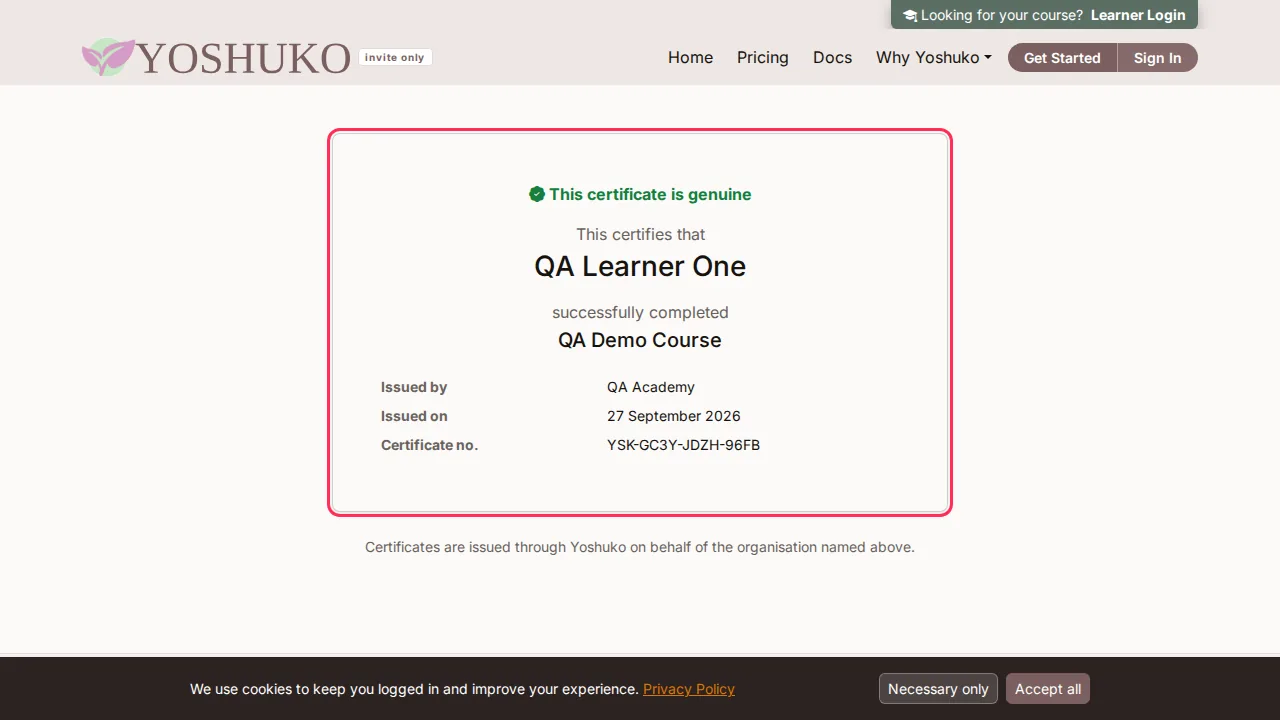
The page shows only those details — nothing else about the learner.
If something goes wrong
| You see | What it means | What to do |
|---|---|---|
| We have no record of this certificate | The code in the address does not match any certificate. | Check the address against the certificate — the code is long and easy to mistype. If it still does not match, ask whoever gave you the certificate to confirm it. |
| A learner who finished has no certificate | They may have finished before certificates were turned on, or be below the Minimum grade to qualify. | Press Issue to learners who already finished, or check their grade in the gradebook. |