Profile, email and your data
Keep your details up to date, choose which emails Yoshuko sends you, and take a copy of your data with you — or close your account. Each task takes a minute or two.
Before you start
- You need to be signed in.
- Learners do all of this in the learner app: open the account menu and choose Settings. Creators change their name and timezone on their Profile page (the account menu in the creator studio, then Profile).
Change your name, timezone and currency
As a learner:
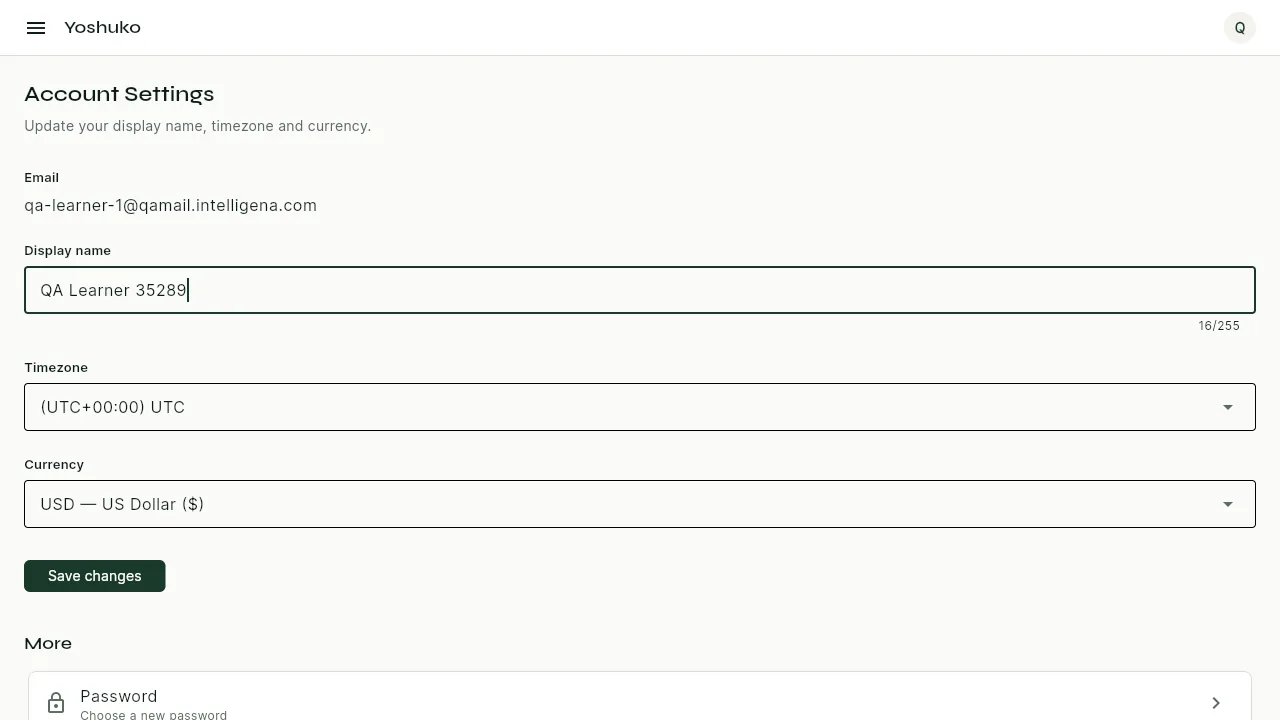
- Open the account menu and choose Settings. The Account Settings page shows your Email, which you can't change here.
- Change any of these:
- Display name — the name other people see.
- Timezone
- Currency
- Press Save changes. You see Settings saved.
As a creator: on your Profile page, change Display name, Timezone or Time display (12-hour (1:00 PM) or 24-hour (13:00)), then press Save. Deadlines and availability windows for your lessons use your timezone. It was set from your browser when you signed up.
Choose your language
Yoshuko is available in English, Chinese (Simplified), Spanish, Japanese, German, French and Arabic. Arabic is laid out right to left.
- In the learner app: open Settings and use Language. Same as this device follows your phone or browser. Each language is named in its own script, so you can find yours without reading English. The app changes as soon as you choose, and your choice is saved to your account, so another device and the emails we send you follow it.
- On the website: use the language menu in the top bar. On the public pages (home,
pricing, comparisons, help) each language has its own address, such as
/ja/pricing/, so you can bookmark or share the page in your language.
What is not translated
The legal documents (Terms, Privacy Policy and the rest) are in English only. Course content is written by creators and stays in the language they wrote it in. Translations of the product were produced by machine and have not yet been reviewed by native speakers, so where a sentence has no translation yet you see it in English.
Choose which emails you receive
- In the learner app, open Settings, then Notifications (Choose which emails you receive).
-
Switch each kind of email on or off:
Setting What it covers Marketing emails Promotions, new features, and product updates. Course updates New lessons, content changes, and instructor announcements. Progress reminders Reminders to continue courses you have started. Creator announcements Messages sent by course creators to their learners. Discussion replies When someone answers a discussion topic you started. Billing emails Receipts, invoices, and billing alerts. This one can't be switched off. 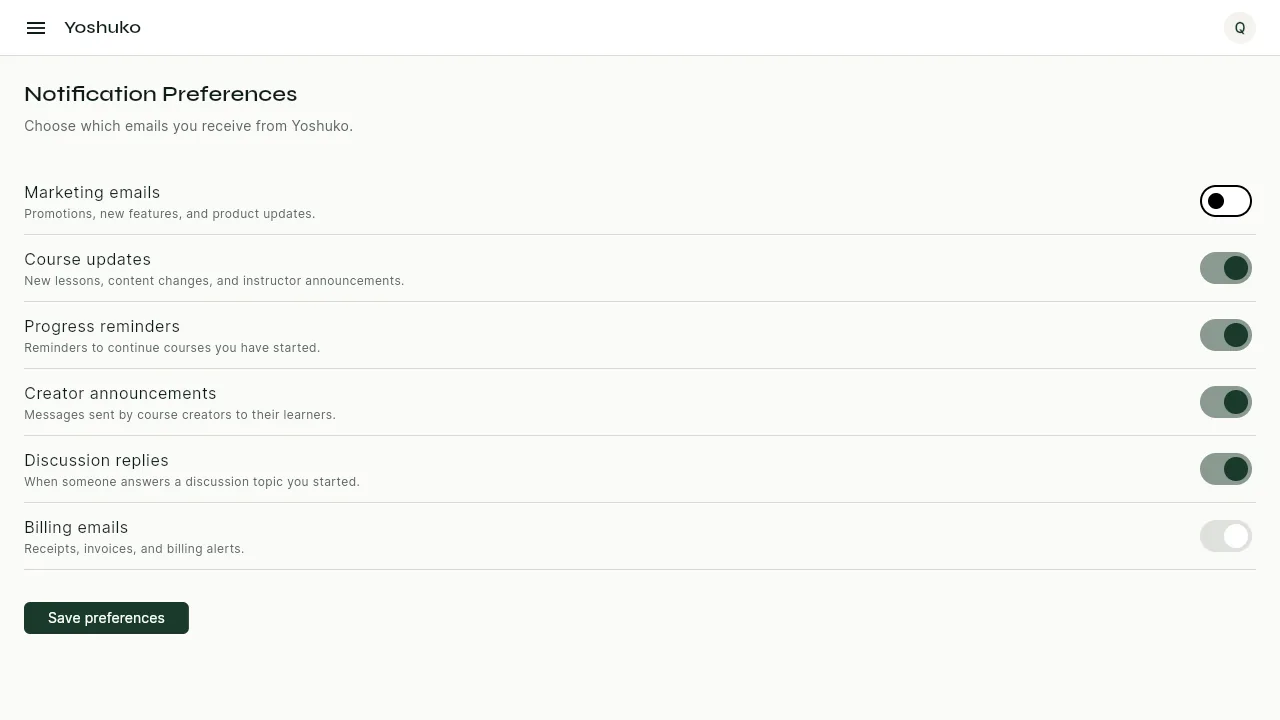
-
Press Save preferences. You see Preferences saved.
Download a copy of your data
- In the learner app, open Settings, then Data & privacy (Export a copy of your data).
-
Press Request data export.
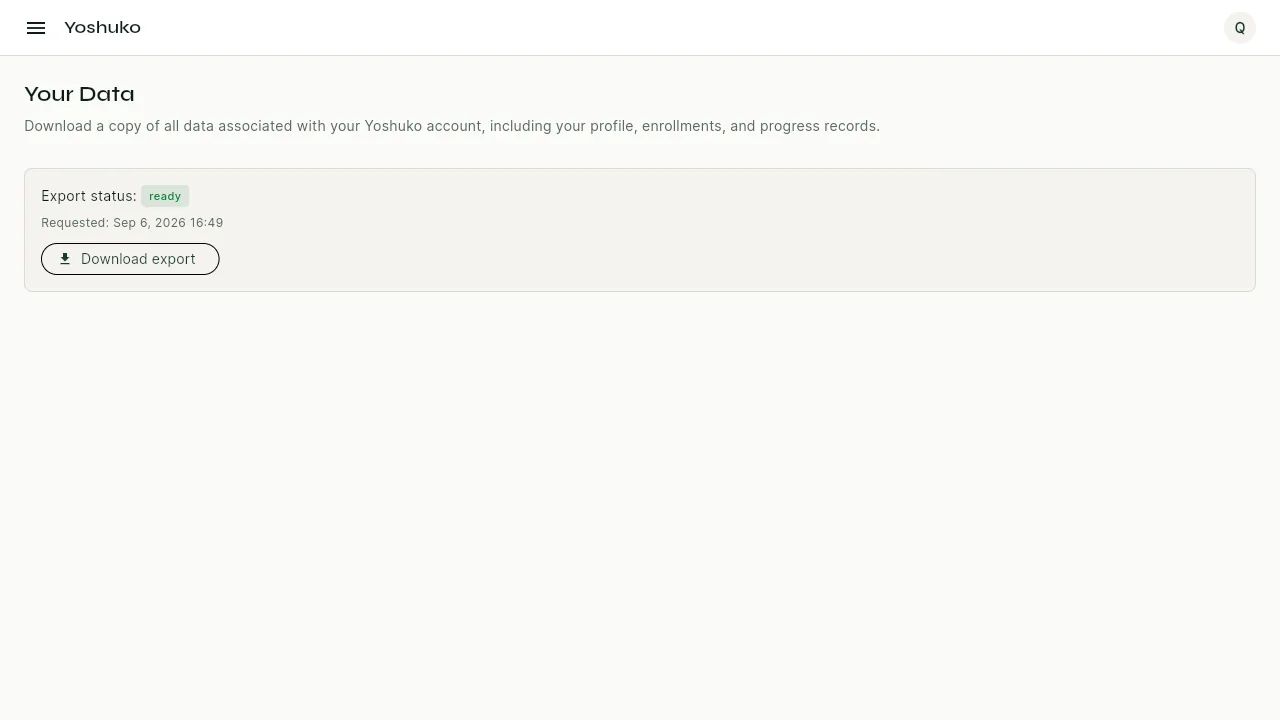 3. Wait while the export is prepared. The Export status shows how it is going and when
you asked for it.
4. When it is ready, press Download export.
3. Wait while the export is prepared. The Export status shows how it is going and when
you asked for it.
4. When it is ready, press Download export.
The download is a single file. It includes your profile (email, username, phone number, display name, timezone, language, currency and the dates you joined, confirmed your email and accepted the terms), your enrolments and progress in each course, your lesson progress, your certificates, and everything you wrote or were marked on: your lesson answers and quiz attempts, your grades, your discussion topics and replies, your attendance, your paper answer sheet results, which versions of the terms you accepted, and your catalogue subscriptions. It covers every organisation you have used Yoshuko with. If a part of it could not be prepared, the file lists that part by name instead of leaving it silently empty. The file is kept for 30 days. If you press Request data export again within a few minutes, you get the same export back rather than a new one.
Delete your account
After 30 days this cannot be undone
Download a copy of your data first if you want to keep anything.
- In the learner app, open Settings, then Delete account (Sign-in stops now; details removed after 30 days).
-
Read the warning, then type DELETE in the box.
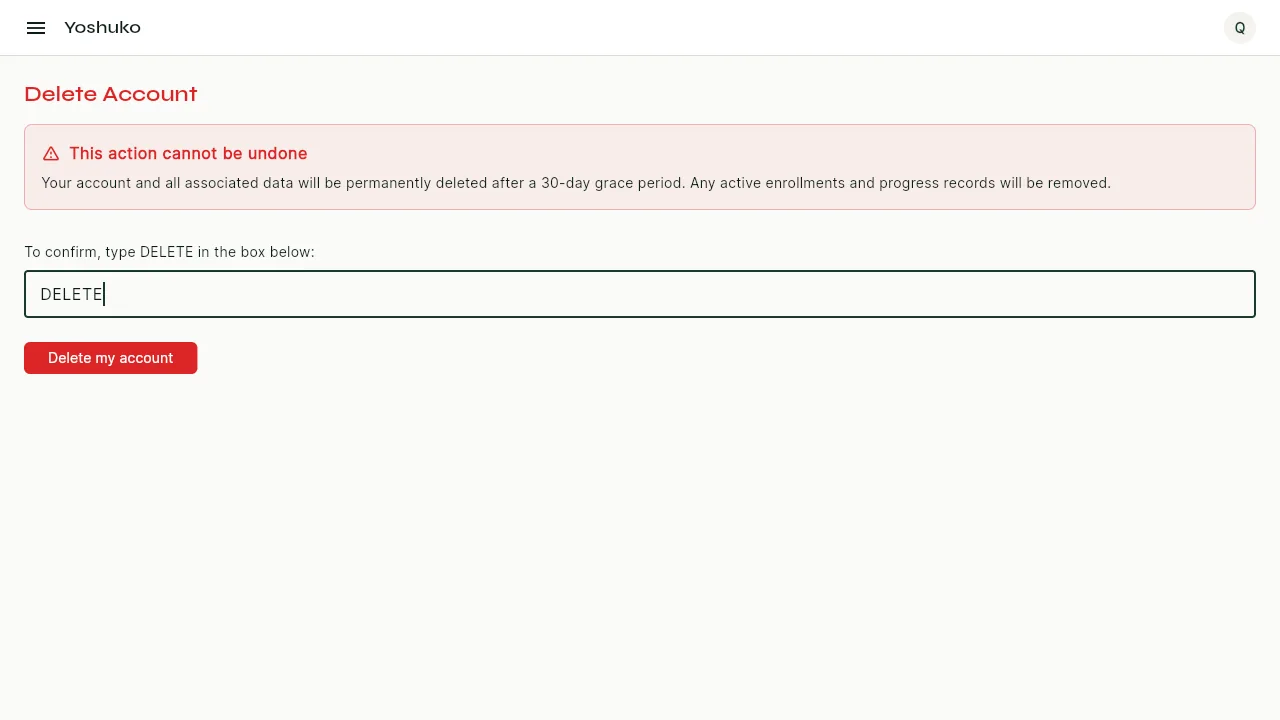 3. Press Delete my account.
You are signed out straight away, and your account can no longer be signed in to — with your password, a Google or Apple sign-in, or any device you were signed in on. If you have an email address on the account, we email you to confirm we received your request. If you did not mean to delete it, write to privacy@yoshuko.com within 30 days and we can restore it.
What happens next
Your request is carried out after a 30-day grace period. At that point:
- Everything you could sign in with is deleted: your username, email address, phone number, password, two-factor settings, and any connected Google or Apple sign-in. Your phone number is freed, so you can use it for a new account later.
- Your name and profile picture are removed, so the account can no longer be linked to you.
- Any face data you gave for attendance check-in is deleted.
Some records are kept because the law requires them: records of purchases and payments (for seven years, for tax), records of which terms you agreed to, and security and audit logs. None of them contains anything you could sign in with. Your enrolment and progress records are also kept; once your details are removed they no longer identify you.
If something goes wrong
| You see | What it means | What to do |
|---|---|---|
| The export status says it failed | The export could not be prepared. | Press Request data export again. If it keeps failing, contact help. |
| Billing emails can't be switched off | Receipts and billing alerts are always sent. | — |
| Delete my account stays greyed out | The confirmation doesn't match. | Type DELETE exactly, in capitals. |